3 Enable SaaS Browsing
3.1 Goal
Configure a fixed business website as a SaaS site so employees can enter it directly from the Sa2web user frontend and reuse a remote browser account that an administrator has already logged in to.
SaaS browsing is suitable when multiple people share the same business account. The administrator logs in to a site in the backend first. Authorized frontend users then access the site in an already logged-in state.
3.2 Create a Site Category
Go to:
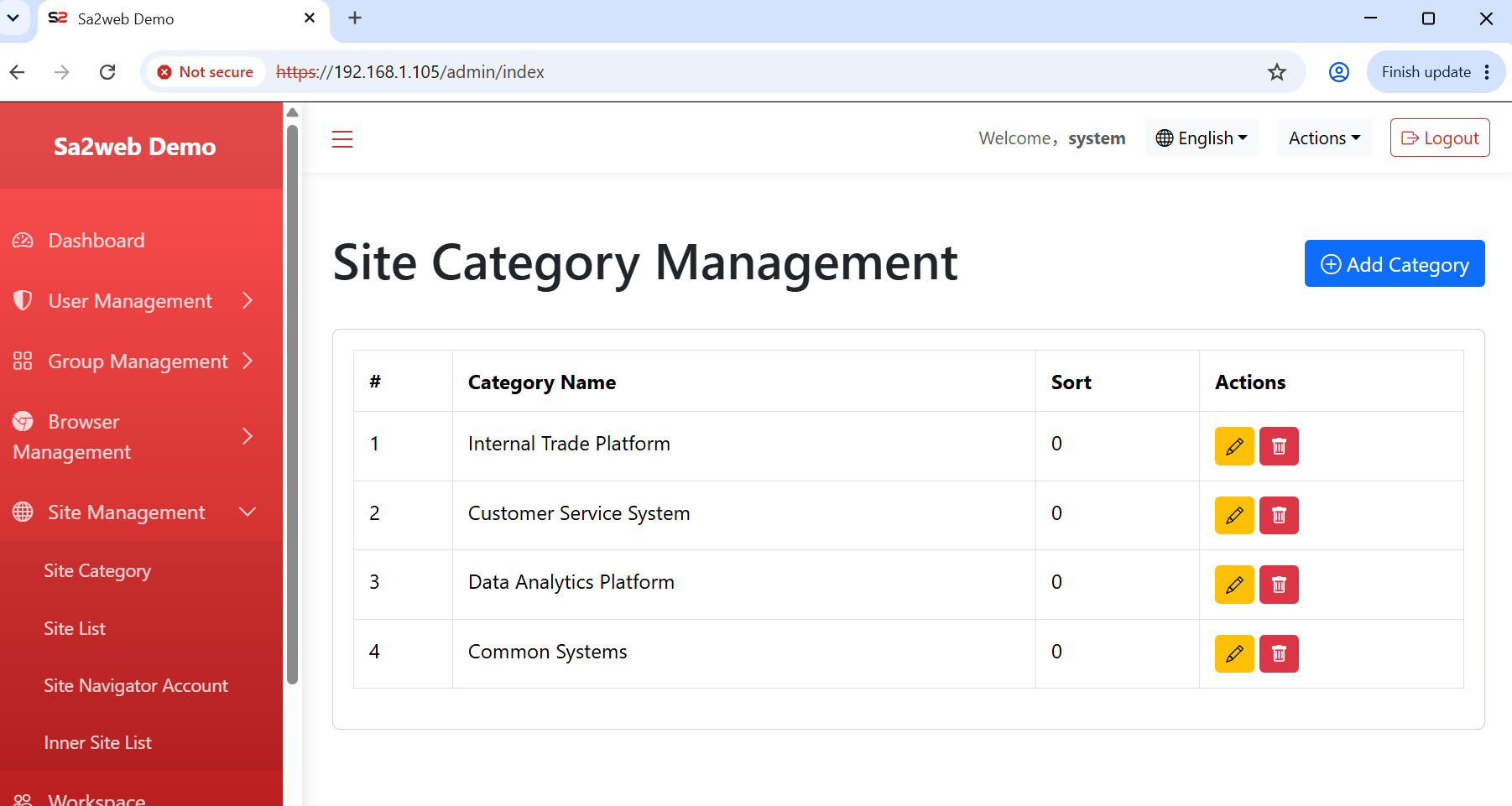
Site Management > Site Category ManagementCreate categories by business area, such as foreign trade platforms, customer service systems, data analytics, and common systems, as shown in Figure 3.1.
3.3 Add a SaaS Site
Go to:
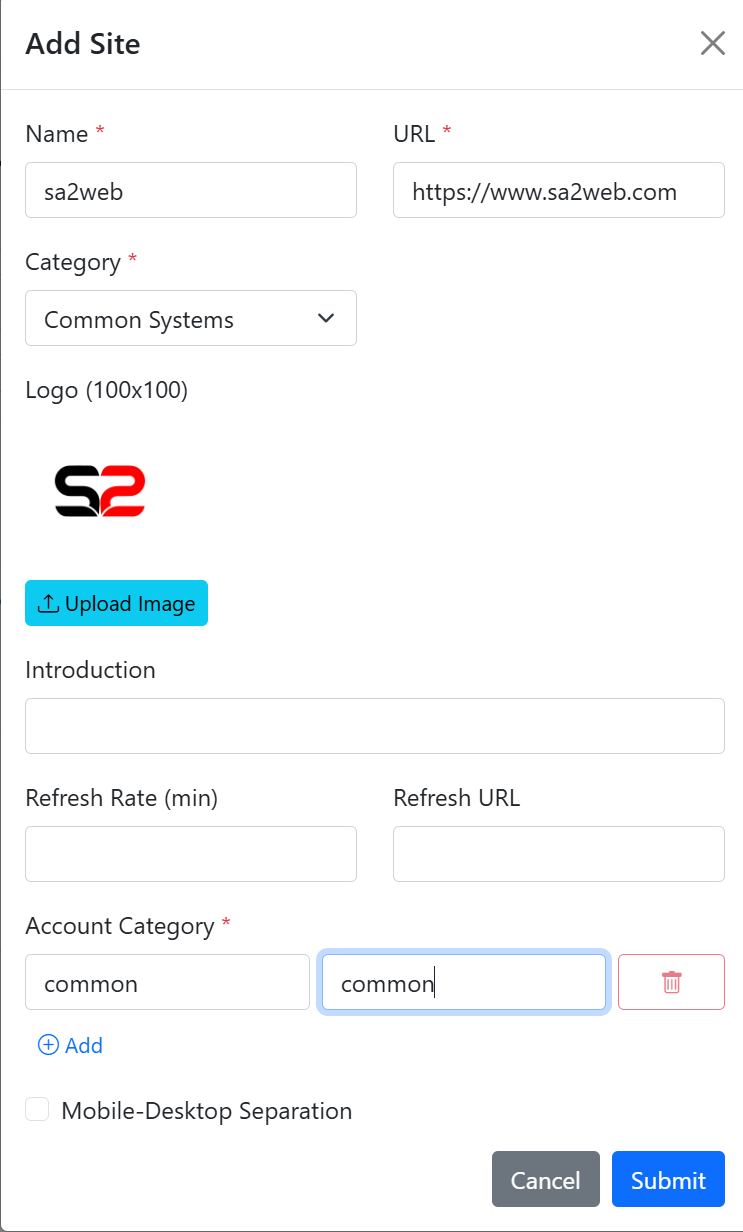
Site Management > Site ListWhen adding a site, as shown in Figure 3.2, fill in:
- Site name.
- Full
https://URL. - Category.
- Logo.
- Description.
- Status.
- Account category.
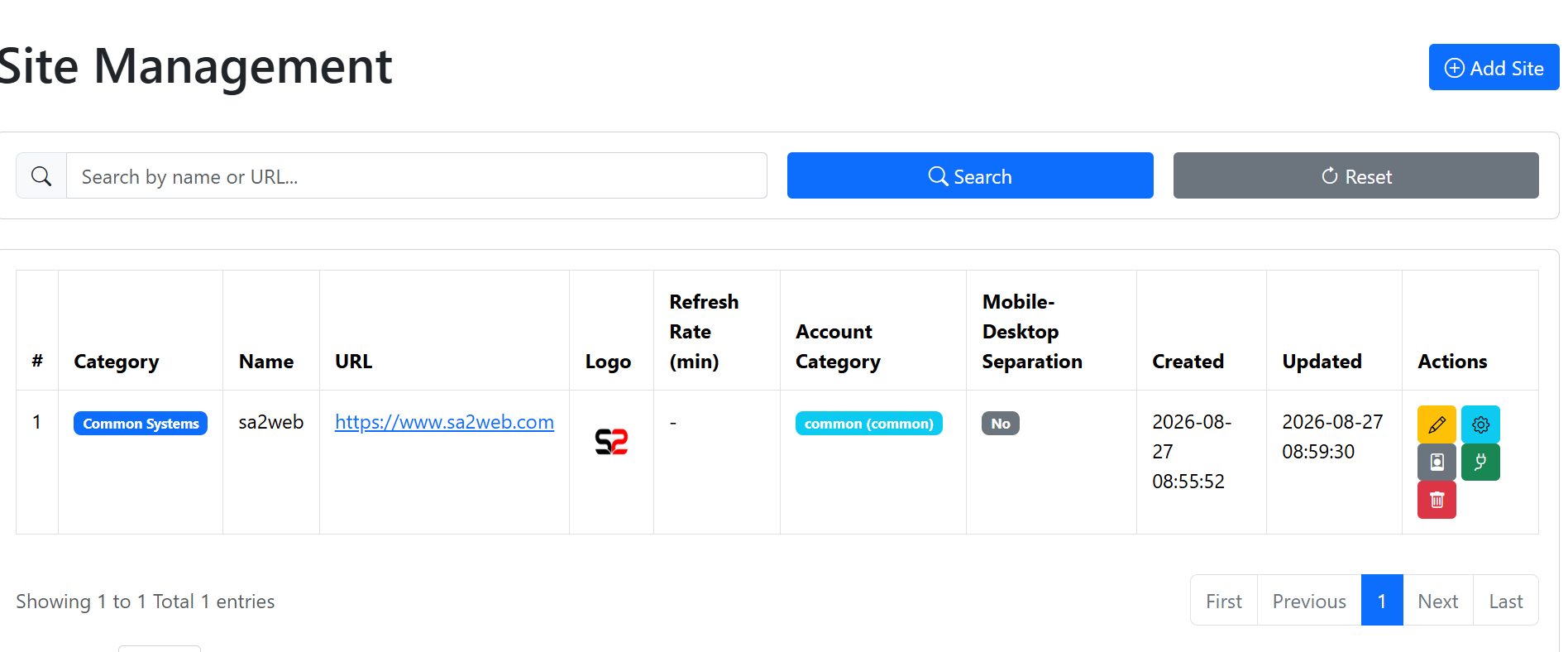
After the site is added, it appears in the site list, as shown in Figure 3.3.
3.4 Create an Account Type and Browser Account
Go to:
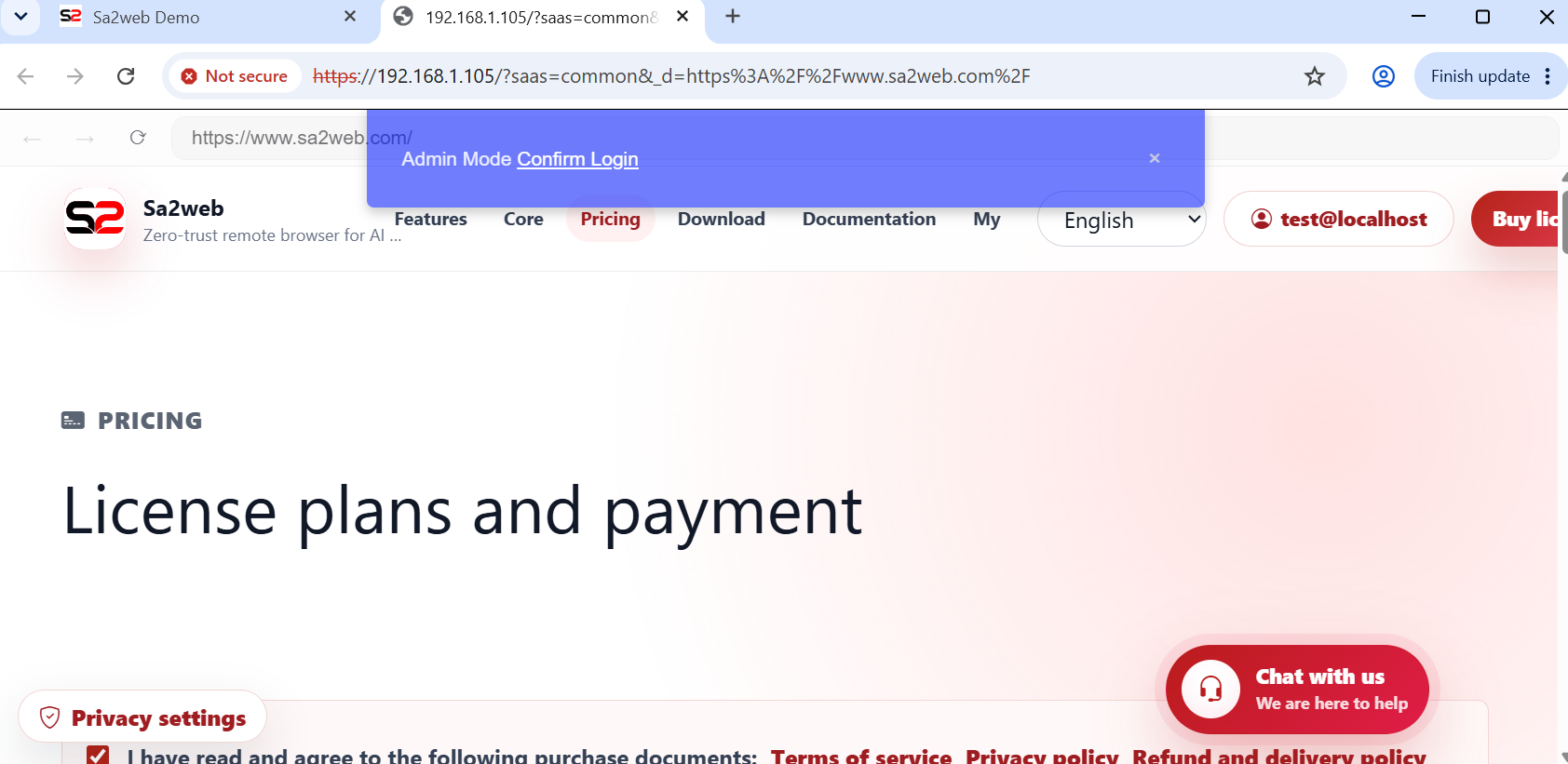
Site Management > Site Browser AccountCreate a browser account for the target site. After saving, click the “ ” button in the list so the remote browser opens the target site and completes login, as shown in Figure 3.4.
3.5 Group Authorization
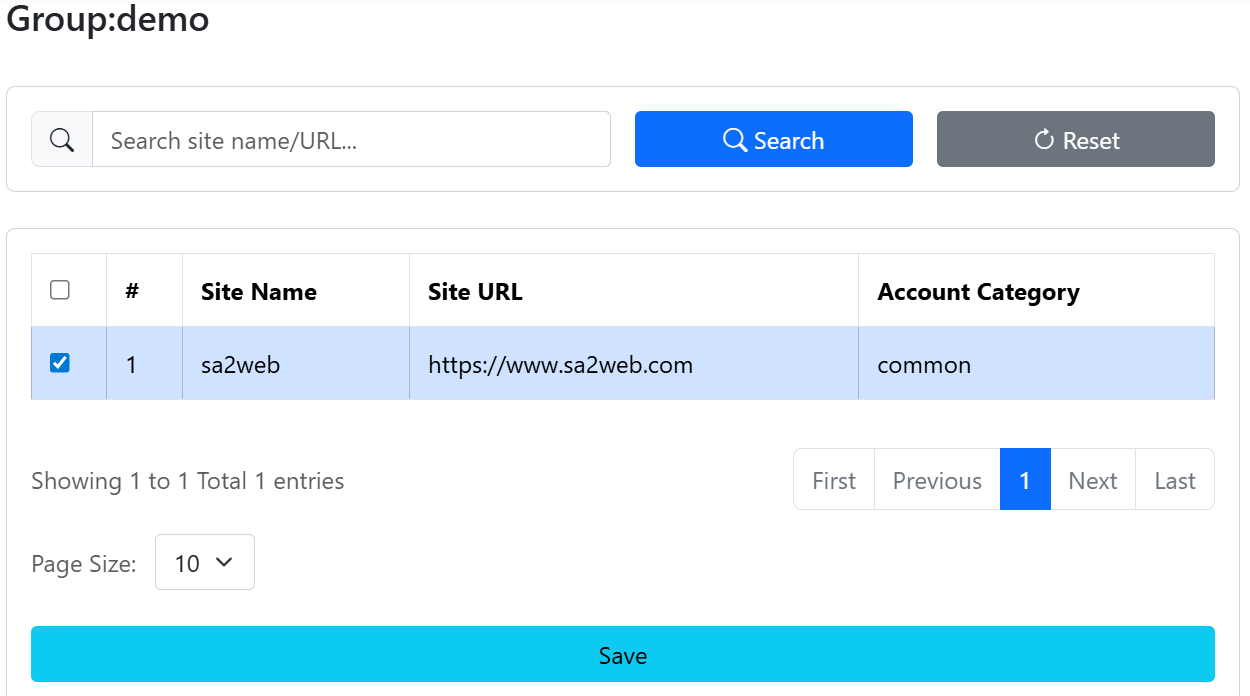
Authorize the following resources in the group:
- Users.
- SaaS sites.
Select the SaaS site in the group, as shown in Figure 3.5.
3.6 User Access
Users log in at:
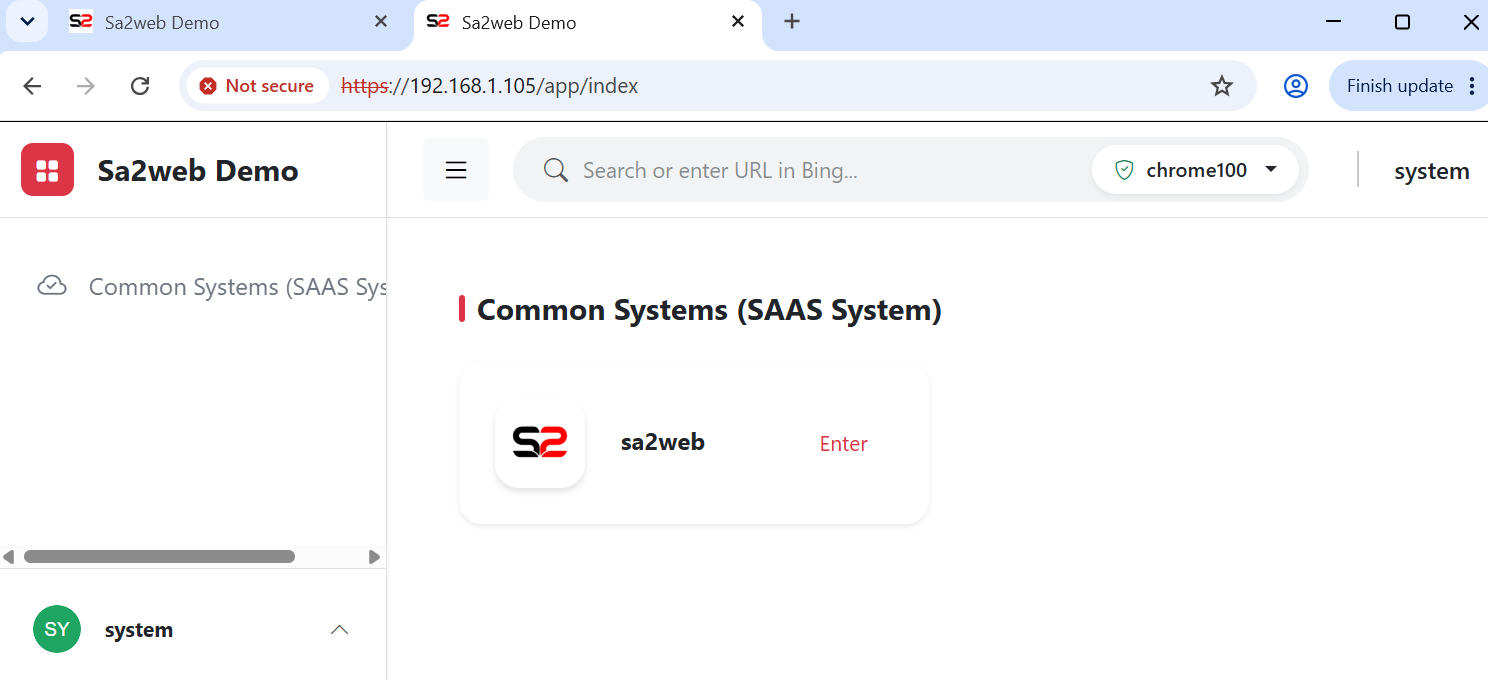
https://<APP_DOMAIN>/app/loginOn the user home page, as shown in Figure 3.6, click the authorized site to enter the remote browser and access the SaaS site, as shown in Figure 3.7.
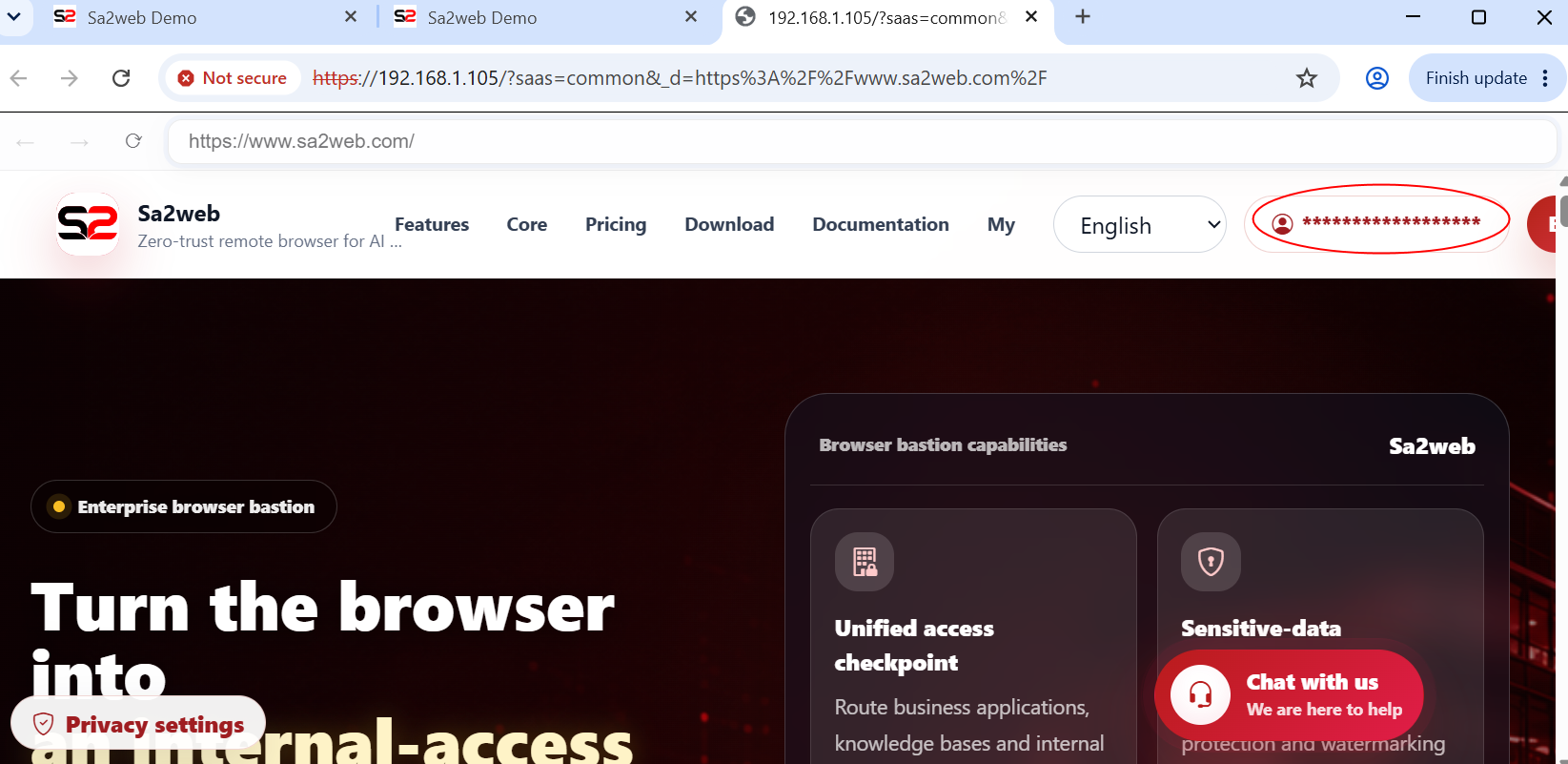
Because the administrator has already completed login in the backend, users enter the SaaS site in a logged-in state. The account name is automatically hidden according to configuration so frontend users do not see shared account information.