6 Enable Inner Site Access
6.1 Goal
Let employees access ERP, CRM, order systems, or internal admin consoles through Sa2web.
Each frontend user has an independent remote browser profile for inner sites. If user A accesses and logs in to an inner site, user B will not inherit user A’s login state when accessing the same inner site. Their browser data remains isolated.
6.2 Confirm Network Reachability
The inner site URL must be reachable from the deployment environment or browser node.
Sa2web does not replace underlying network connectivity. The browser node still needs the required routing, intranet tunneling, DNS, firewall, and ACL conditions to access the internal system.
6.3 Add an Inner Site
Go to:
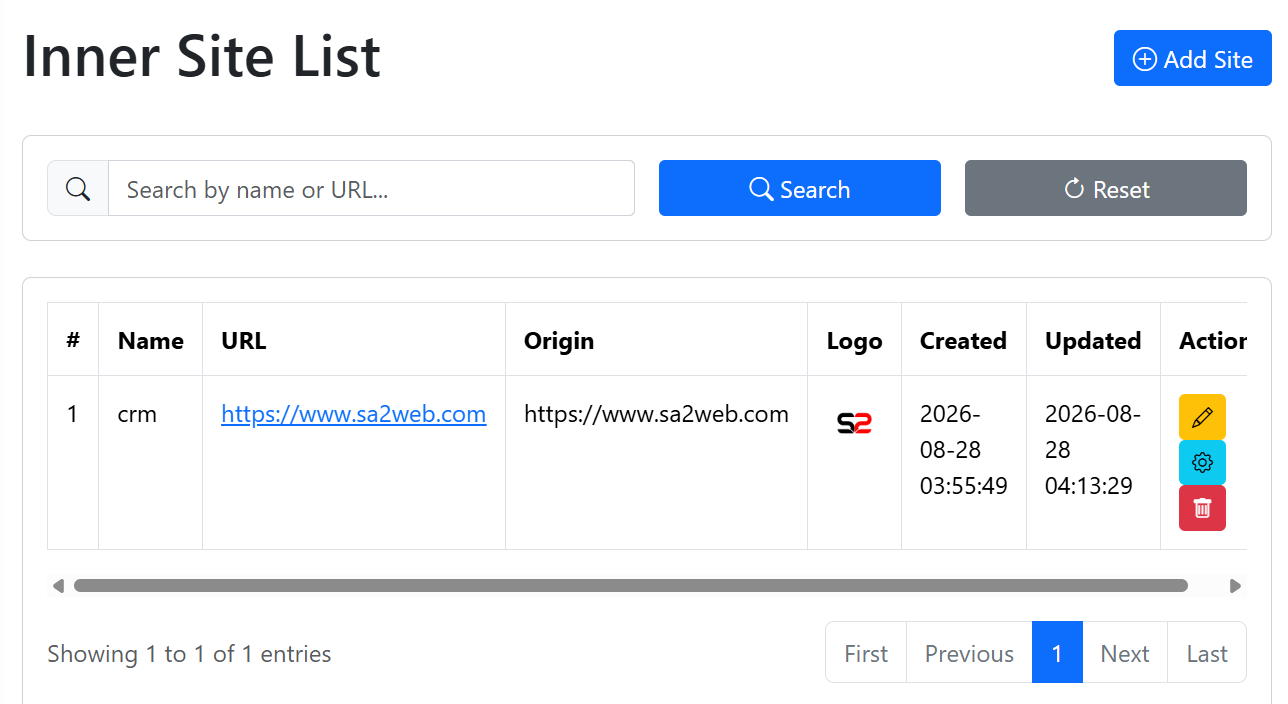
Site Management > Inner Site ListOpen the Sa2web inner site list, as shown in Figure 6.1.
Click Add Site to open the add inner site dialog, as shown in Figure 6.2.
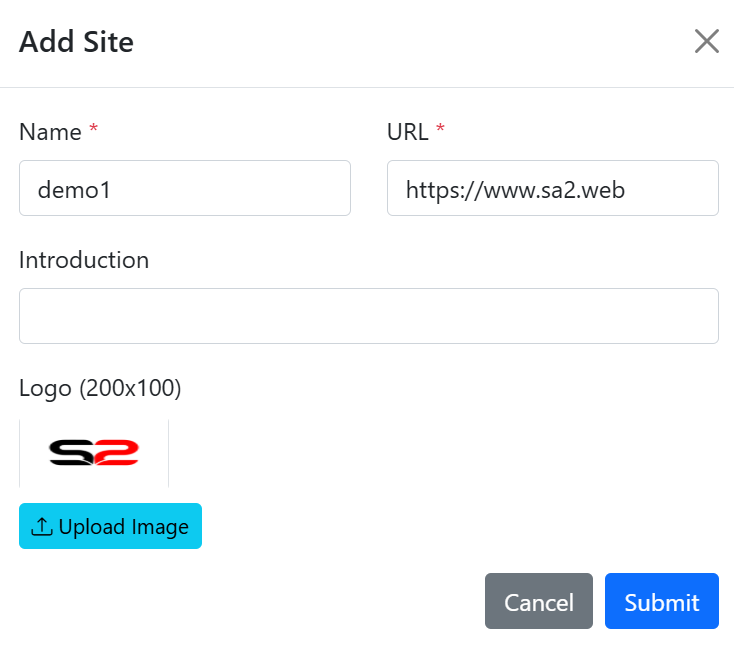
Fill in:
- Name.
- URL.
- Description.
- Logo.
6.4 Group Authorization
Authorize the inner site to business users in a group.
Go to:
Group Management > Inner SitesOpen the inner site authorization page, as shown in Figure 6.3.
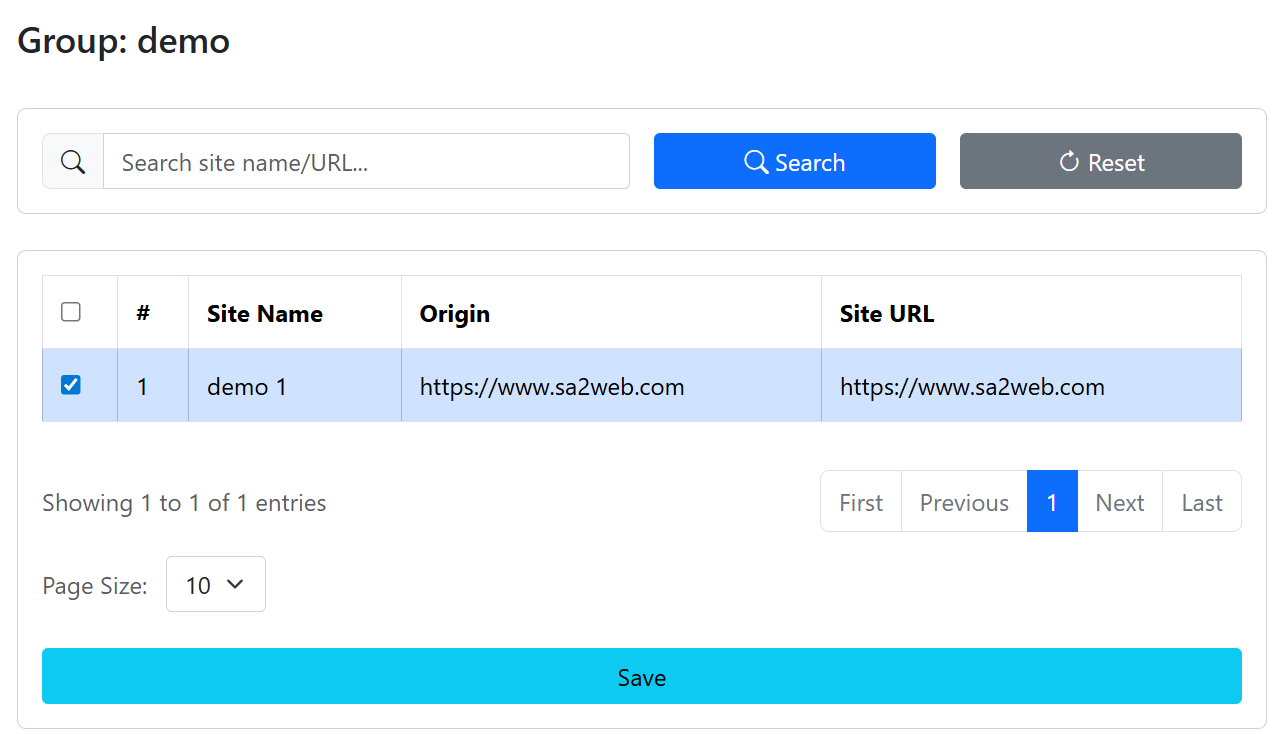
Select the inner sites that need authorization, then click Save.
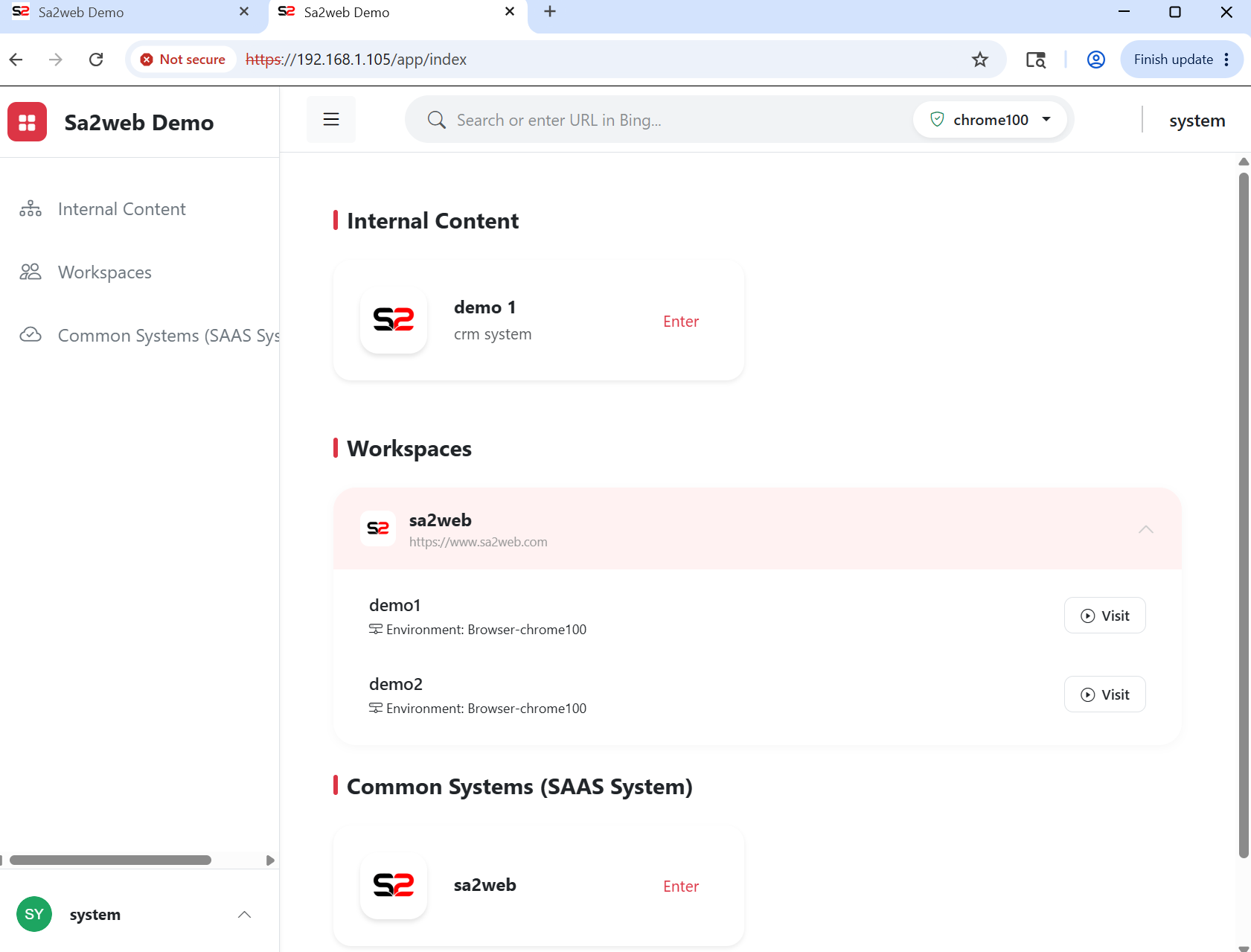
After authorization, users can click Enter in the Internal Systems area of the frontend, as shown in Figure 6.4.
6.5 Typical Remote Work Path
Employee normal browser
   ->
Sa2web
   ->
Enterprise-side browser runtime
   ->
ERP / CRM / internal backend
With this path, employee devices do not need to connect directly to inner sites, and internal system addresses do not need to be exposed.