5 Enable Multi-Workspace Browsing
5.1 Goal
Use workspaces to manage fixed business accounts, fixed browser environments, and multi-user collaborative access.
When the same site needs multiple accounts or identities, create multiple workspaces for that site. When frontend users enter different workspaces, they are effectively using different remote browser environments and accounts.
5.2 Plan Workspaces
You can divide workspaces by region, business line, store, or customer, for example:
E-Commerce US A
E-Commerce US B
E-Commerce EU C
This lets different workspaces log in to the same site with different accounts and avoids account conflicts.
5.3 Create a Workspace
Prerequisites: the site has been created and you have the Workspace Management permission.
Go to:
Workspace Management > Workspace ListThe workspace list is displayed, as shown in Figure 5.1.
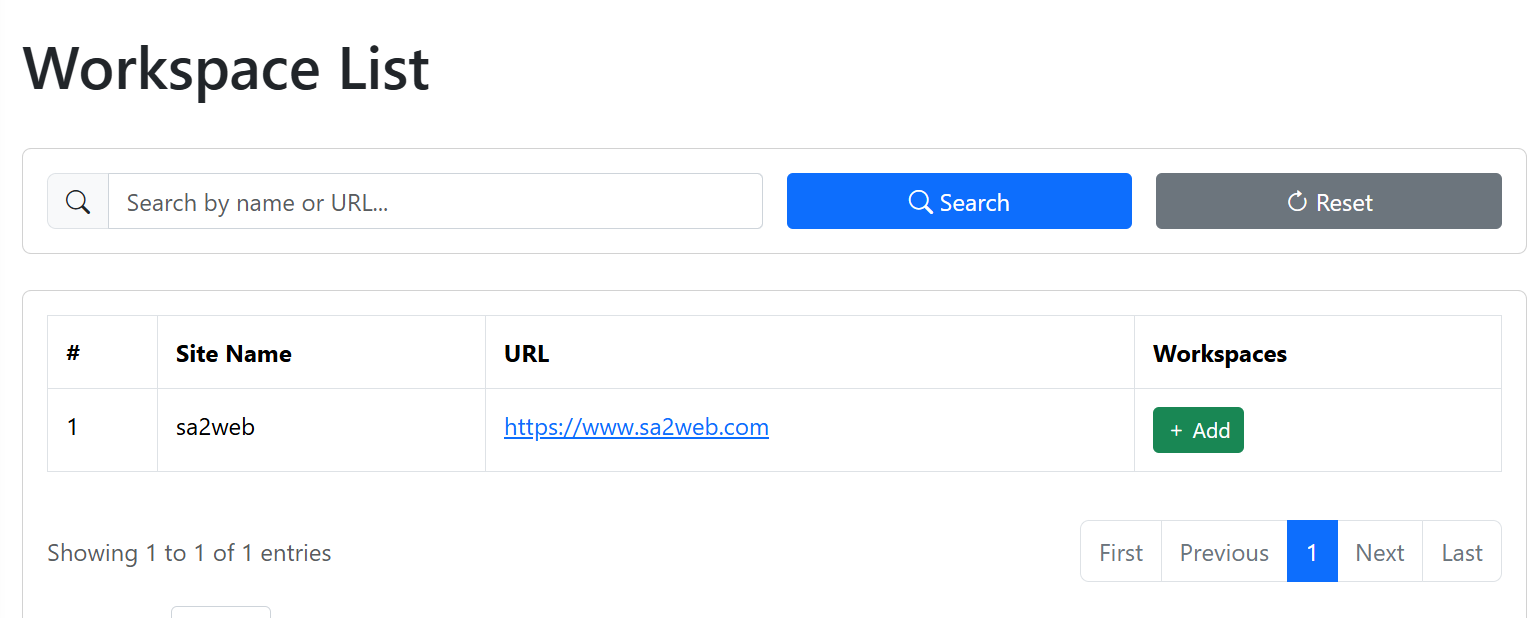
After selecting a site, click the “ ” button to open the add workspace dialog, as shown in Figure 5.2.
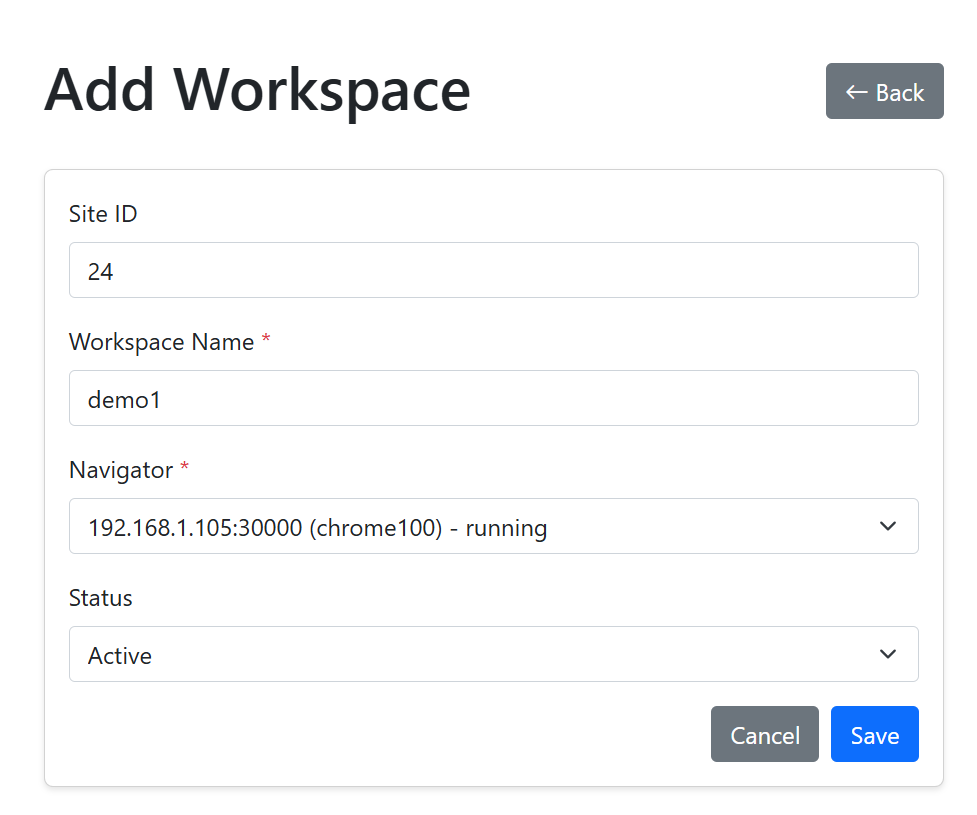
Enter the workspace name, choose a browser instance, and save.
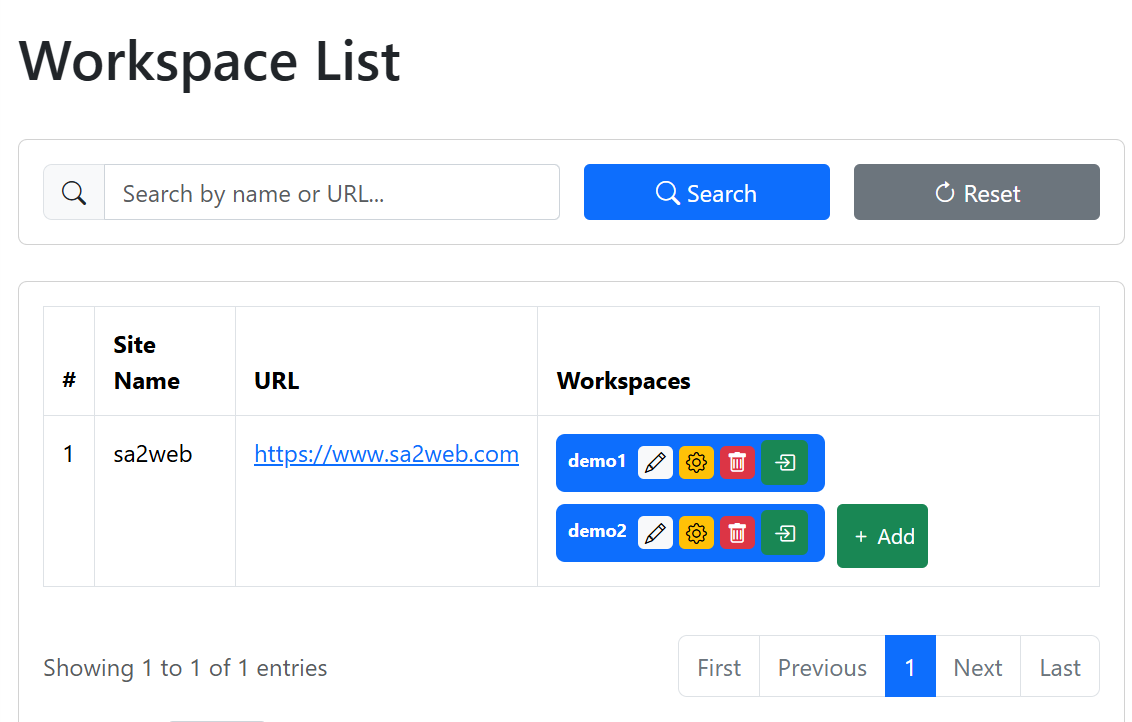
After saving, click the “ ” button to enter the login and access page for that workspace, then log in to the target site, as shown in Figure 5.3.
5.4 Group Authorization
Authorize the workspace to business users in a group.
Go to:
Group Management > WorkspacesThis opens the workspace authorization page, as shown in Figure 5.4.
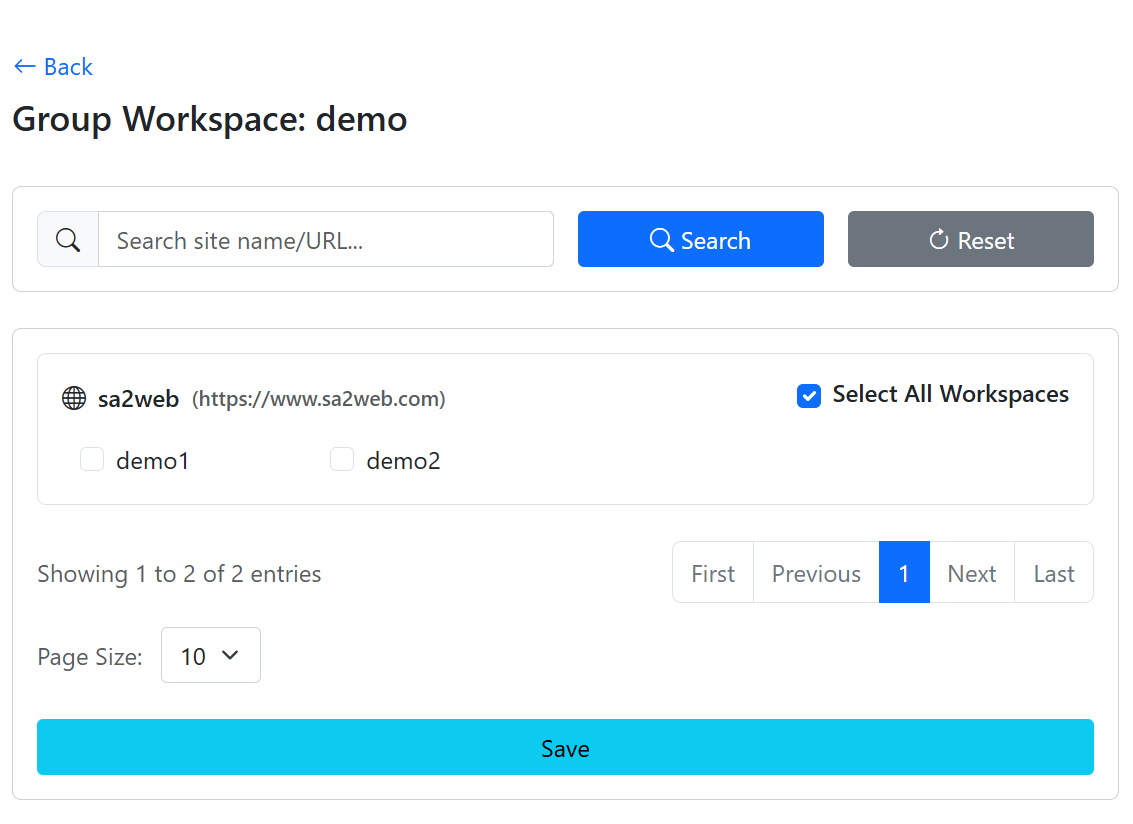
If you choose Select all workspaces in the upper-right corner of a site, both existing and future workspaces under that site are authorized to the current group. If you only want to expose some workspaces, select them individually.
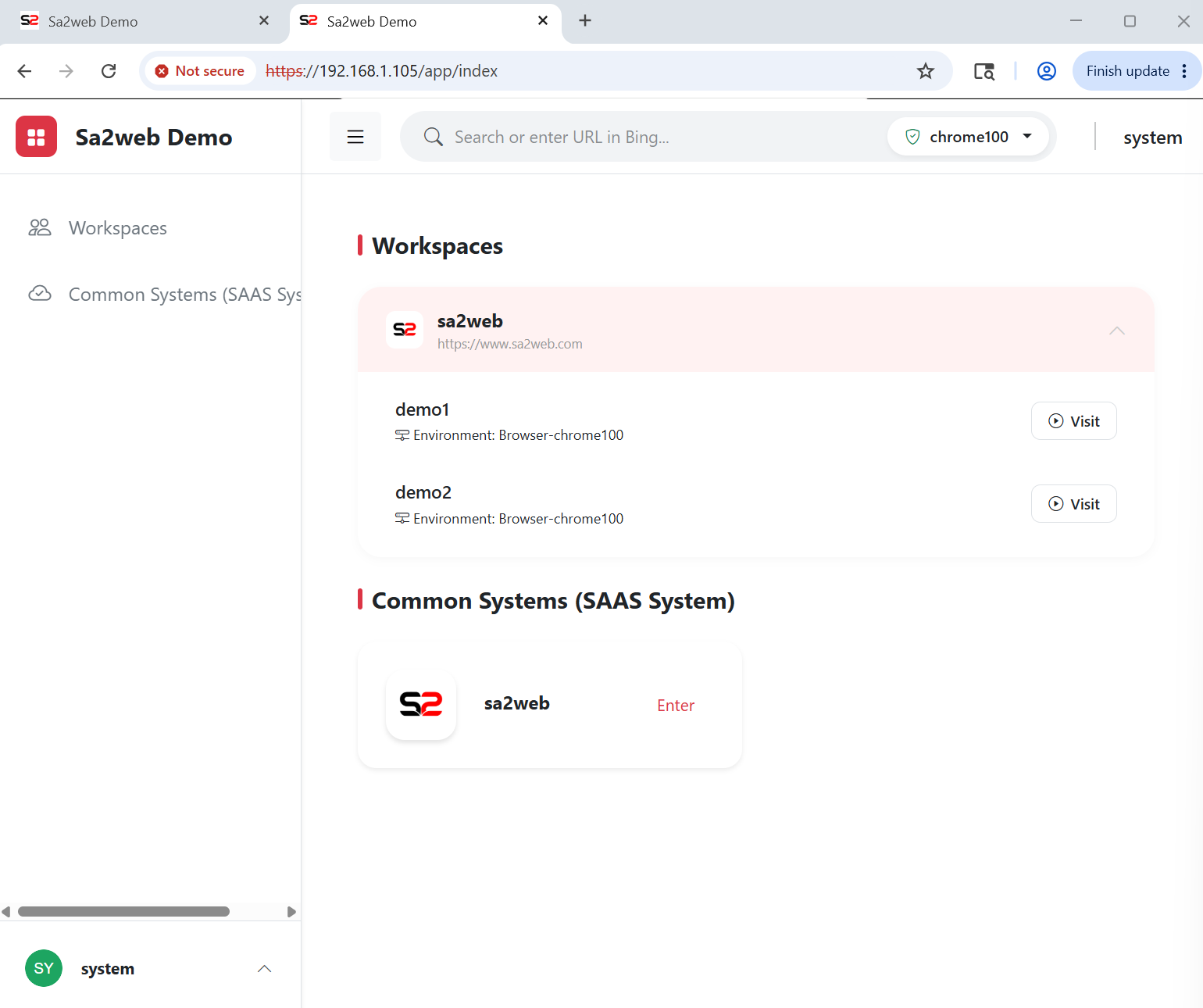
When users enter the Sa2web home page, the workspaces appear, as shown in Figure 5.5. Expand the site and click Access to open the corresponding workspace.
5.5 Network Isolation
When different accounts need different network environments, combine:
- Cloud Browser proxy.
- Cloud Browser isolated network.
- Different browser instances and configurations.