7 Manage Users and Permissions
7.1 Goal
Build a system of users, administrators, roles, permissions, and groups so frontend access and backend administration can be authorized by responsibility.
7.2 Create Users
Go to:
User Management > User ListThe user list page is displayed, as shown in Figure 7.1.
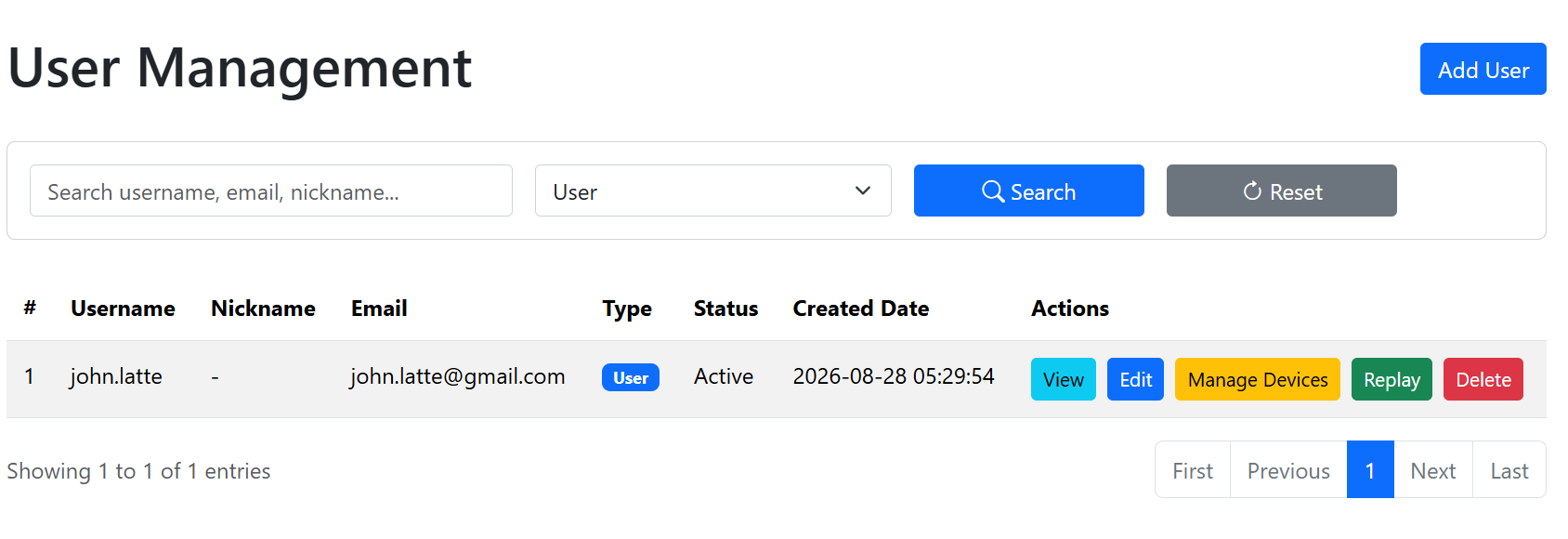
The user list mainly contains two types of users: normal users and collaboration users. Normal users can log in directly to the Sa2web frontend. Collaboration users are created automatically by collaboration links. Their usernames usually start with v, and they cannot enter the Sa2web frontend through the normal login page.
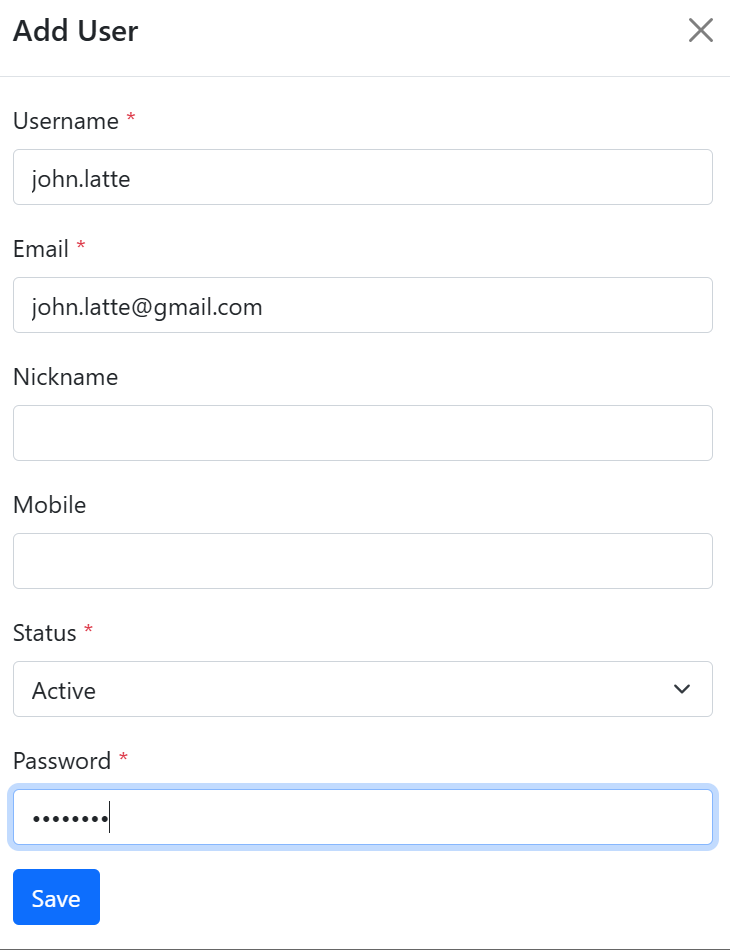
Click Add User to open the add user dialog, as shown in Figure 7.2, and fill in the username, nickname, email, phone number, password, user type, and status.
Normal users can log in at:
https://<sa2web-domain>or:
https://<sa2web-domain>/app/login7.3 Create Administrators and Roles
Go to:
User Management > Admin List
User Management > Role List
User Management > Permission List
Create roles by responsibility. Do not let every administrator use the highest privilege level long term.
7.3.1 Add a Role
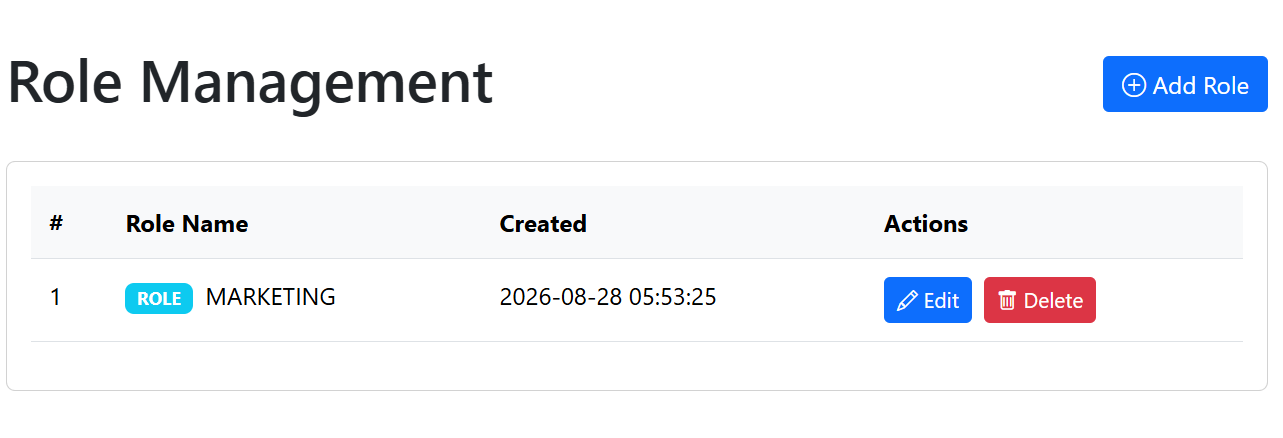
Open the role list, as shown in Figure 7.3. Click Add Role, enter the role name, and save.
7.3.2 Add an Administrator
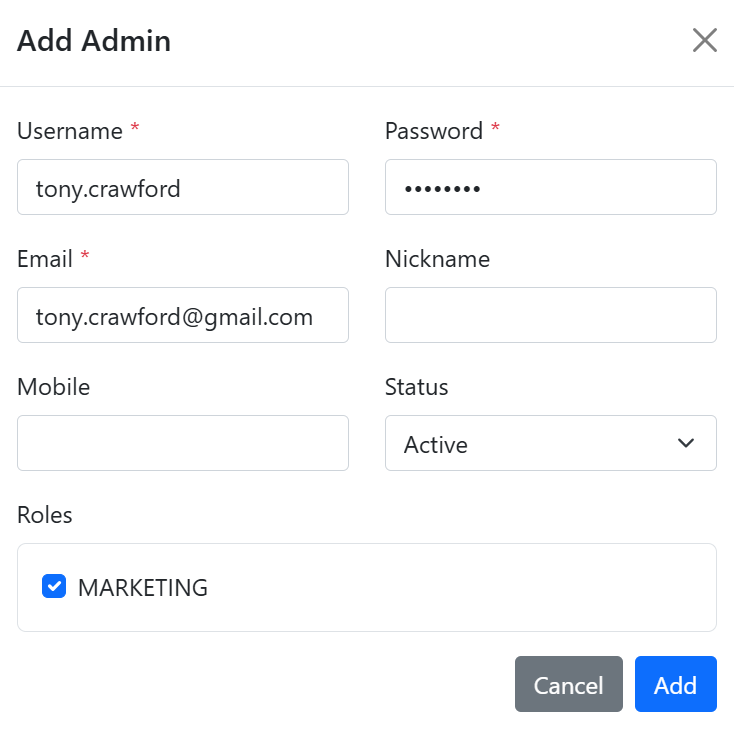
Open the admin list and click Add Admin. The add admin dialog appears, as shown in Figure 7.4. Fill in the username, password, email, phone number, status, and assigned role.
7.3.3 Permission Management
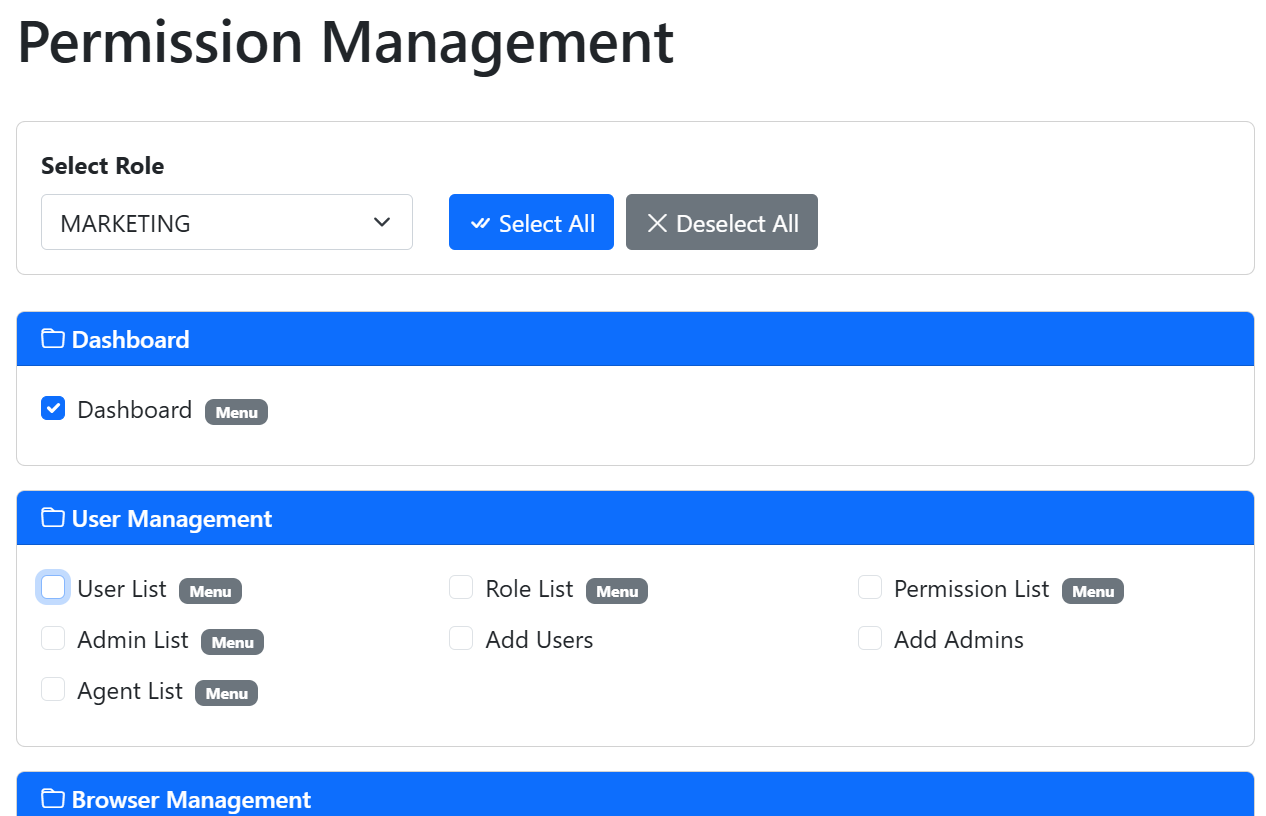
Open the permission list, as shown in Figure 7.5. Select a role and choose the permissions required by that role. Click Save Permissions in the lower-right corner to save.
7.3.4 Disable Administrators and Users
In the admin list or user list, click Edit and change the user status to Inactive.
7.4 Manage Frontend Resources with Groups
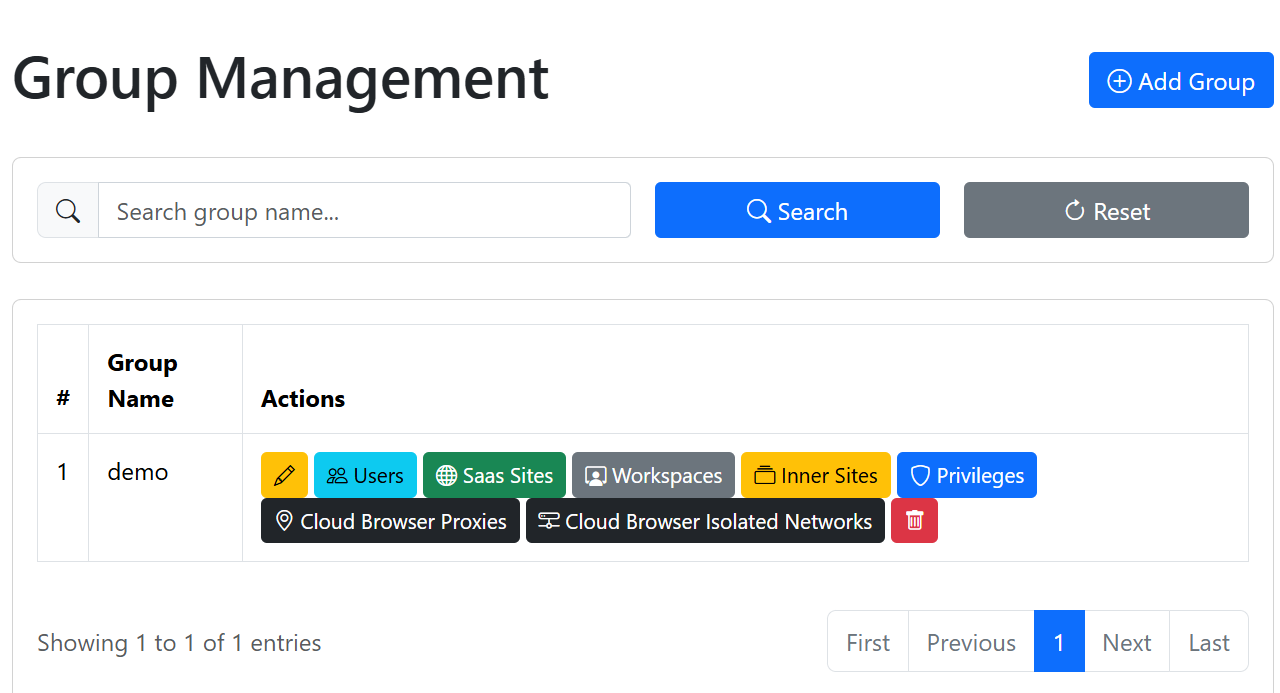
A group can centrally manage frontend-visible resources, as shown in Figure 7.6:
- Users.
- SaaS sites.
- Workspaces.
- Inner sites.
- Permissions.
- Cloud Browser proxies.
- Cloud Browser isolated networks.
Create groups based on real business needs, for example:
Operations Team
Customer Support Team
Finance Read-Only Team
Contractor Collaboration Team
Customer A Project Team