13 Customize Sites
13.1 Goal
Use scripts in advanced site configuration, or scripts under site plugins, to hide, remove, and rewrite pages, data, and interfaces inside a site.
13.2 1. Advanced Site Configuration
Go to:
Site Management > Site List > ConfigurationScript-related configuration and terms include:
| Configuration | Purpose |
|---|---|
| Request headers / response headers | Allows scripts to read specified headers |
| Page script | Select Page Script when the script operates on page content, such as DOM, forms, buttons, redirects, and page enhancements |
| SSE script | Select SSE script when the script rewrites server-sent event streams |
| Standard interface interception | When neither of the above two options is selected, the script rewrites standard non-SSE interface response bodies |
13.3 2. Scripts and Plugins
Operation path:
- Click Manage Plugins in the site list.
- Create a plugin.
- Fill in the name, version, remarks, and associated site.
- Upload the plugin or enter configuration.
- Add a script.
- Set the matching URL, script type, selector, and content.
- Verify with a test account.
Scripts can also be used for account types, workspaces, and inner sites.
13.4 3. Sensitive Page Content Controls
Suitable for:
- Hiding prices.
- Hiding customer privacy fields.
- Removing buttons and areas that employees are not allowed to operate.
- Hiding page areas for specific URLs.
- Rewriting a page area.
Selectors may become invalid after the target site changes, so regression testing is required.
13.5 Page Script Tool
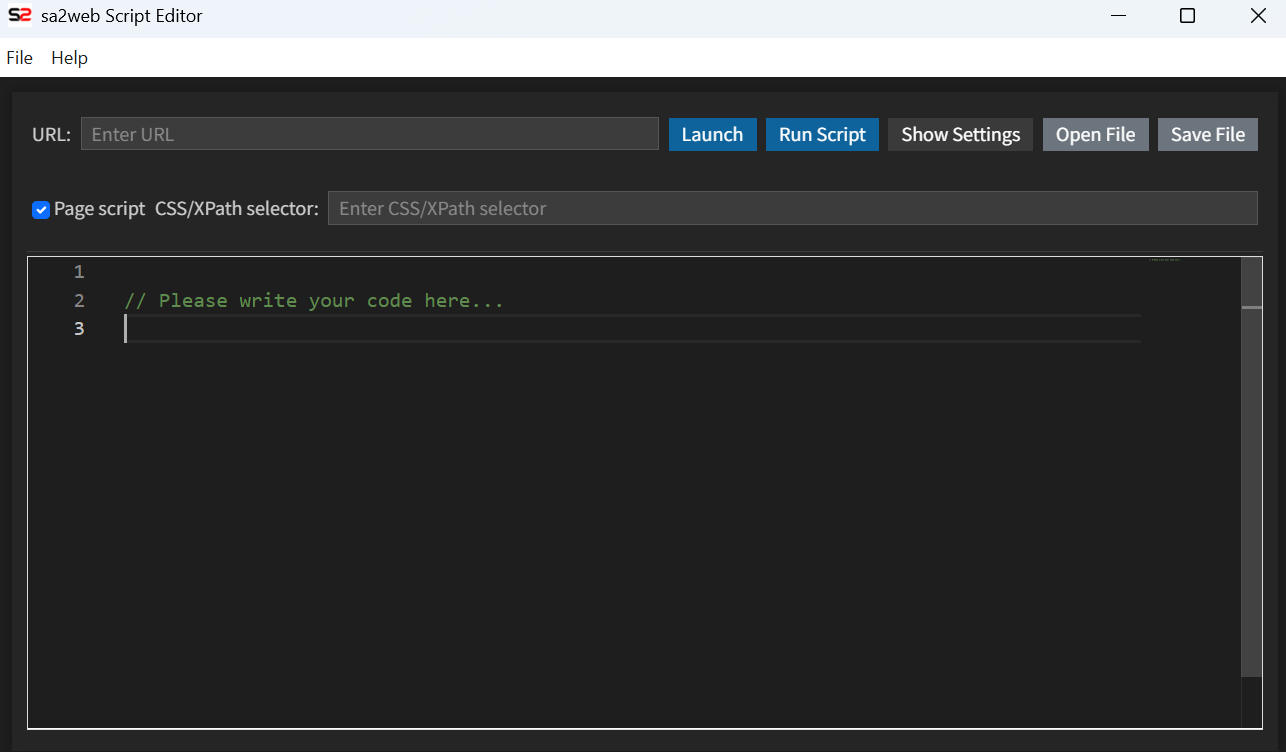
Writing and testing scripts directly on the web page is not convenient. You can download the official script editor from GitHub: https://github.com/sa2web/sa2web-script-editor.
After downloading and extracting the installation files, click sa2web.exe to start the script editor, as shown in Figure 13.1.
The following two examples demonstrate the feature.
13.6 Example 1: Change the Official Website Header Background to Coral
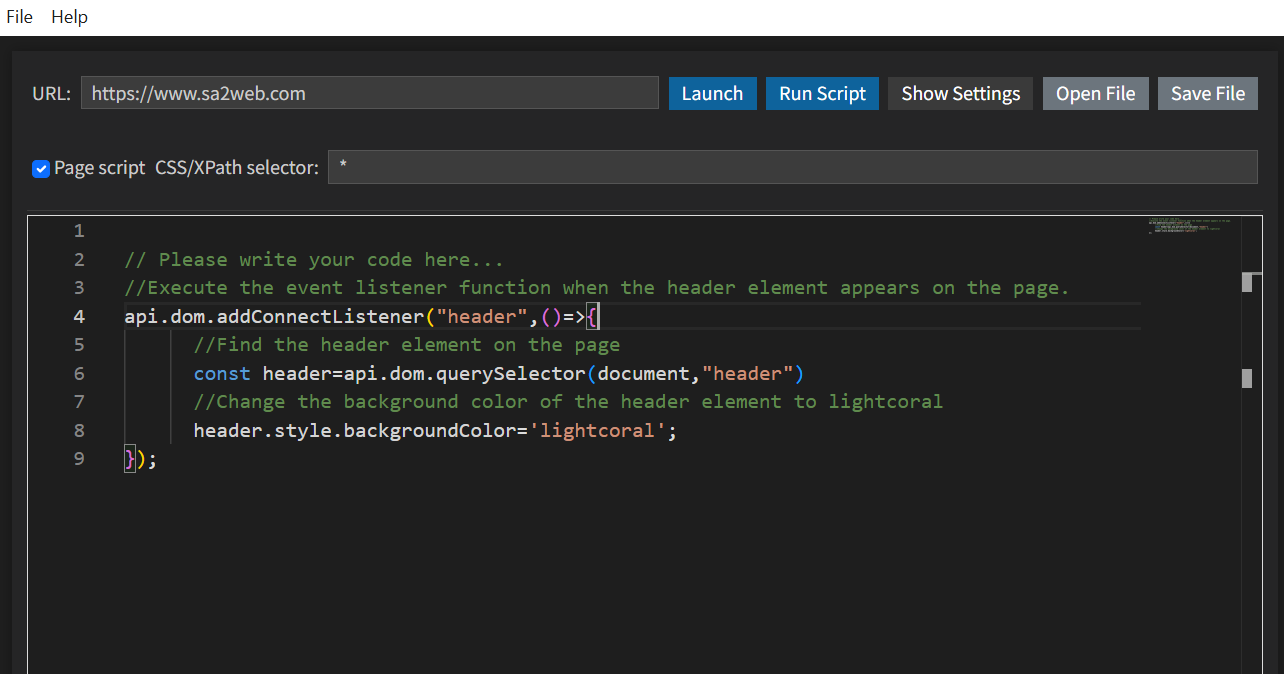
- Enter
https://www.sa2web.comin the URL field. - Select
Page script, which means the script operates on page content. - Enter
*inCSS/XPath selector, which means the script below runs when a matching element appears on the page. - Enter the following JavaScript code in the script box, as shown in Figure 13.2:
// Please write your code here...
// Execute the event listener function when the header element appears on the page.
api.dom.addConnectListener("header", () => {
  // Find the header element on the page.
  const header = api.dom.querySelector(document, "header");
  // Change the background color of the header element to lightcoral.
  header.style.backgroundColor = 'lightcoral';
});
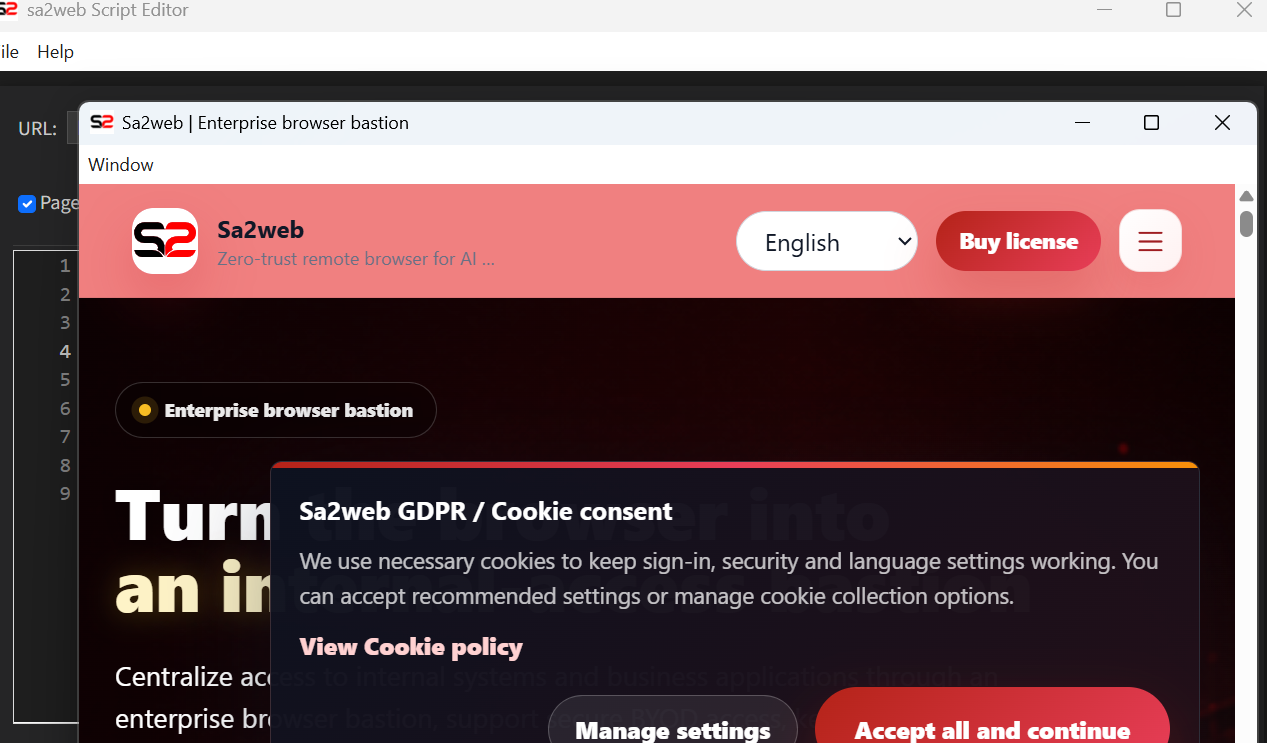
Click Run Script to test the script. The website on the left opens and the script runs, as shown in Figure 13.3.
After the result meets expectations, copy the content above into the page, as shown in Figure 13.4.
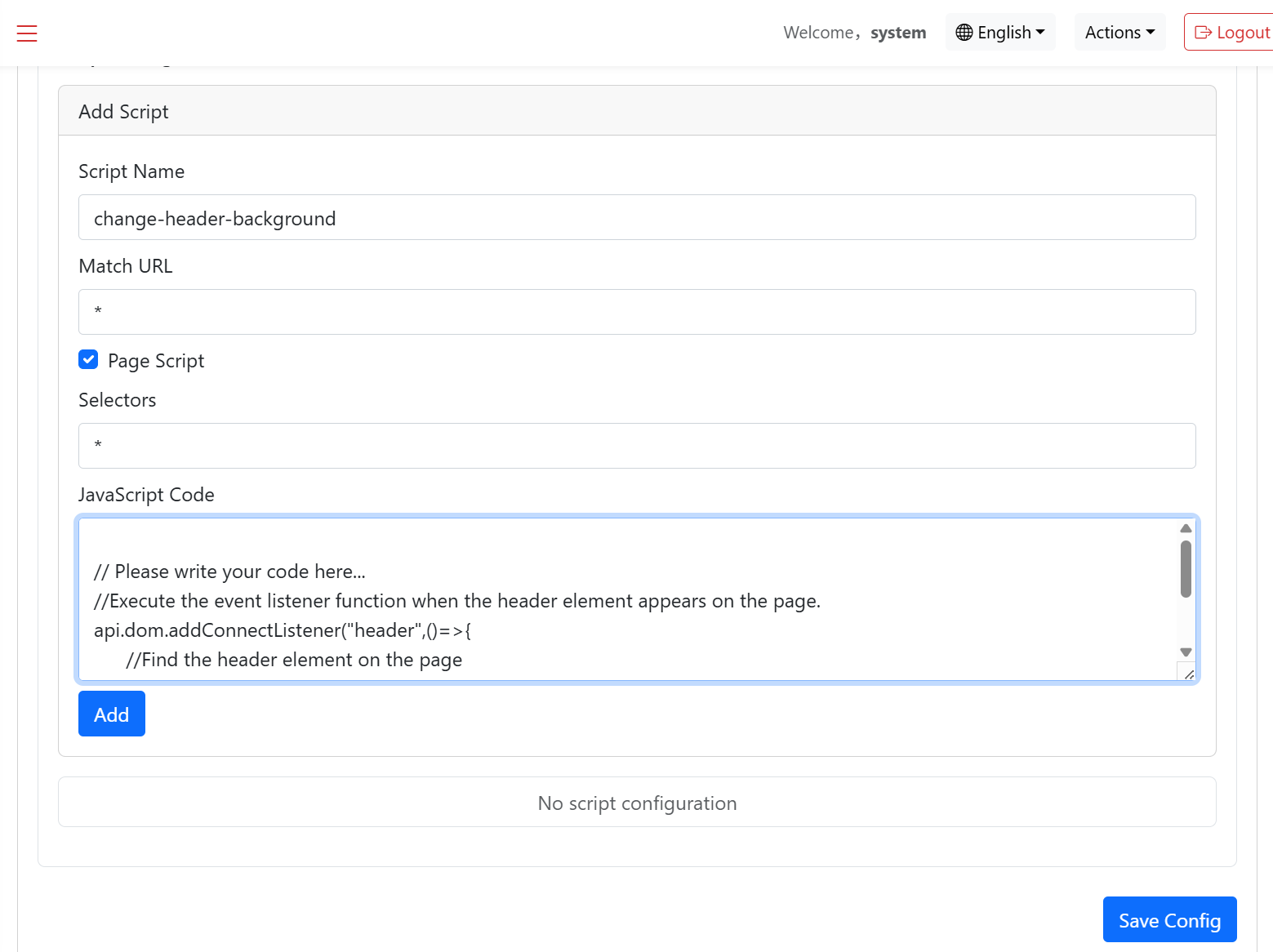
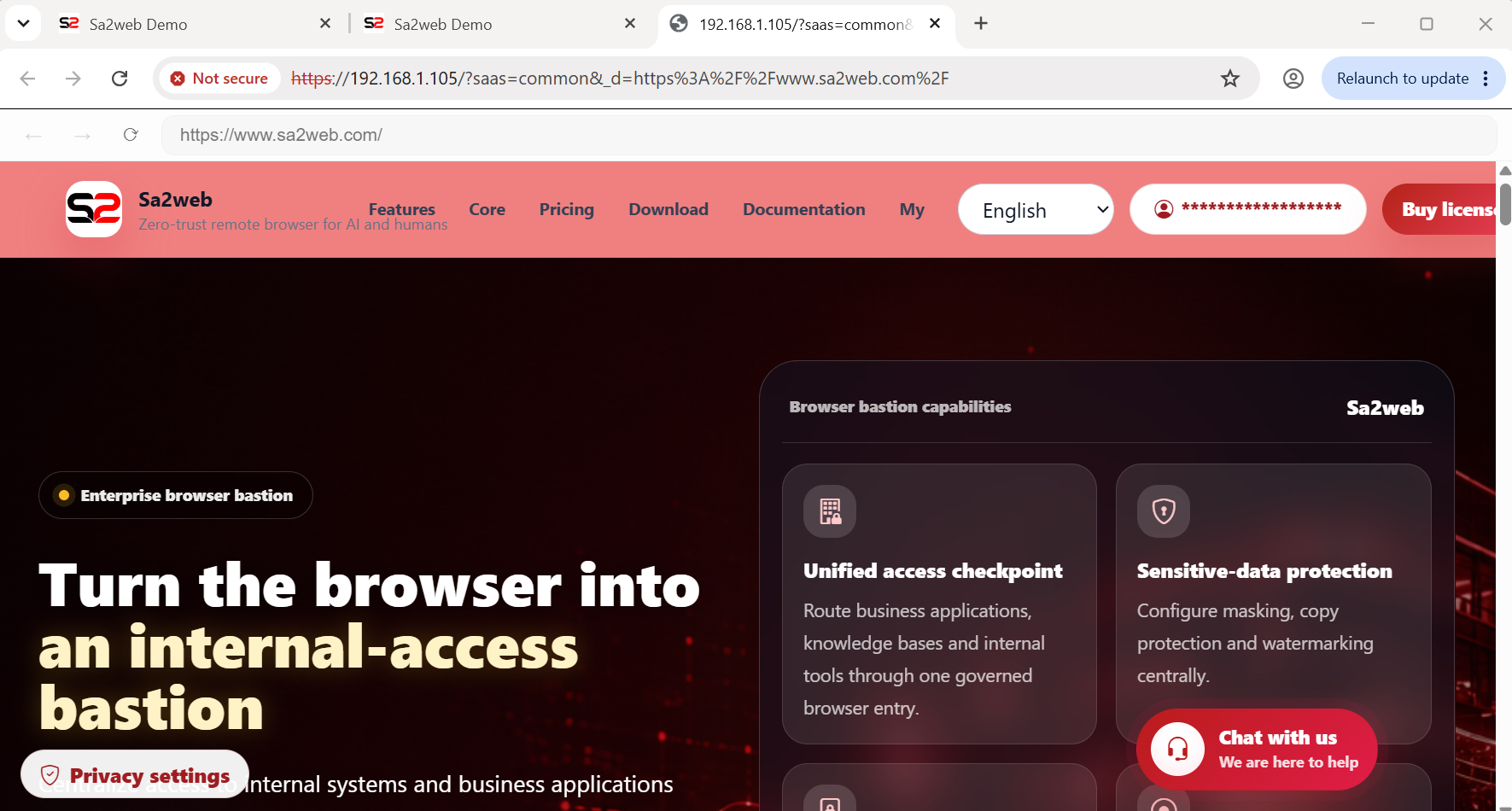
Click Add, then click Save Config. When users log in and access the site from the frontend, the navigation bar turns coral, as shown in Figure 13.5.
13.7 Example 2: Show Page Views in the Middle of the Official Website
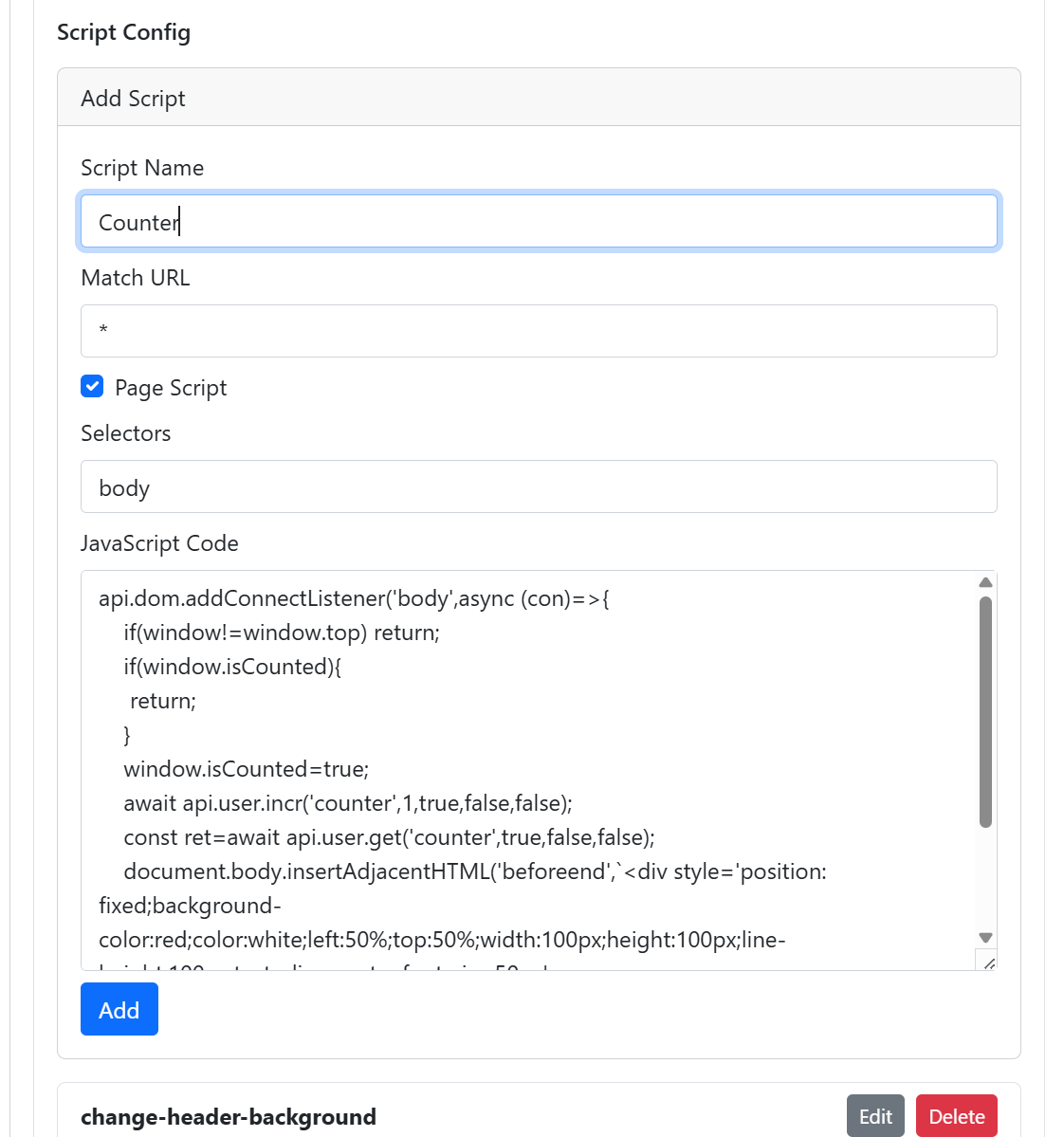
This example mainly uses api.user to store and display data, with persistent storage in the database. Here it is used to show a page-view counter on the official website page, as shown in Figure 13.6.
api.dom.addConnectListener('body', async (con) => {
  if (window != window.top) return;
  if (window.isCounted) {
    return;
  }
  window.isCounted = true;
  // Count page views by current site only.
  await api.user.incr('counter', 1, true, false, false);
  // Get page views by current site only.
  const ret = await api.user.get('counter', true, false, false);
  document.body.insertAdjacentHTML('beforeend', `<div style='position: fixed;background-color:red;color:white;left:50%;top:50%;width:100px;height:100px;line-height:100px;text-align:center;font-size:50px'>
  ${ret.value}</div>`);
});
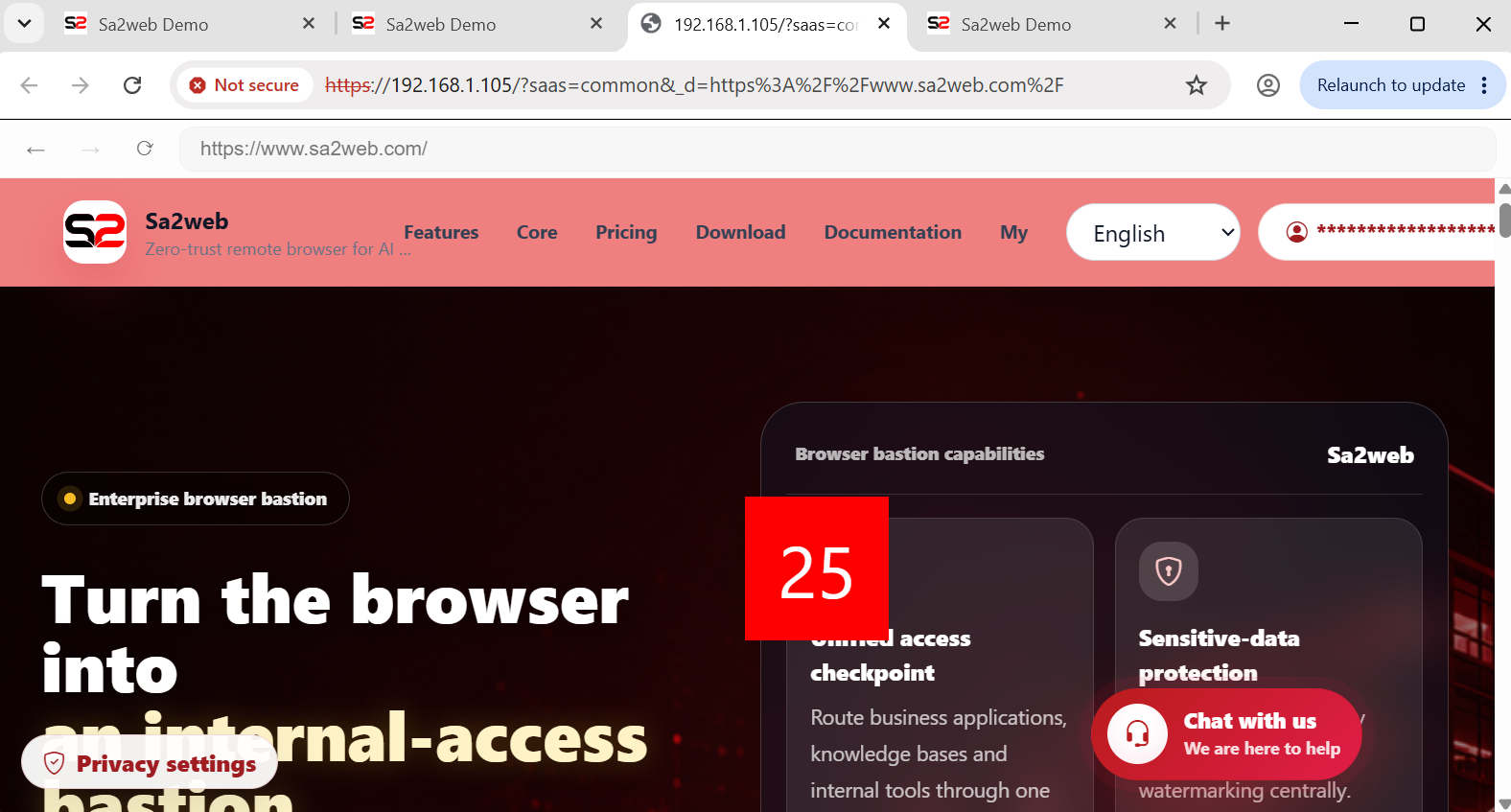
About one minute after clicking Add and Save, access the site from the Sa2web frontend. A red box appears in the middle of the page, showing the page-view count. Each visit or refresh increases the count by 1, as shown in Figure 13.7.
Of course, api.user provides more APIs than these. It can also store and retrieve data by account and by device. See Chapter 14 for the complete API.
These two examples only demonstrate some of the most basic site customization features. You can also integrate deeply with enterprise systems through other APIs, such as api.http, to provide a better experience.
13.8 4. window.api
Page scripts and standard interface interception scripts can use:
window.apiIt mainly includes APIs related to user, dom, utils, config, and header().
For the complete interface, see Chapter 14.