11 Enable Sa2web MCP Access
11.1 Goal
Let MCP-capable AI clients such as Codex, Claude Code, and Cursor read and operate Sa2web remote browsers.
11.2 Preparation
- Node.js 20+.
- Install
@sa2web/mcp. - Prepare the agent login URL.
- The agent account has the required SaaS, workspace, inner site, and proxy permissions.
The clientId and clientSecret in the agent login URL must be treated as secrets.
11.3 Installation
npm install @sa2web/mcp -g
npx playwright install --with-deps
After installation, these commands are available:
sa2
sa2-browser
sa2-mcp
11.4 Create an Agent User
Go to:
User Management > Agent ListAdd a new Agent user, such as mcp-agent, and save, as shown in Figure 11.1.
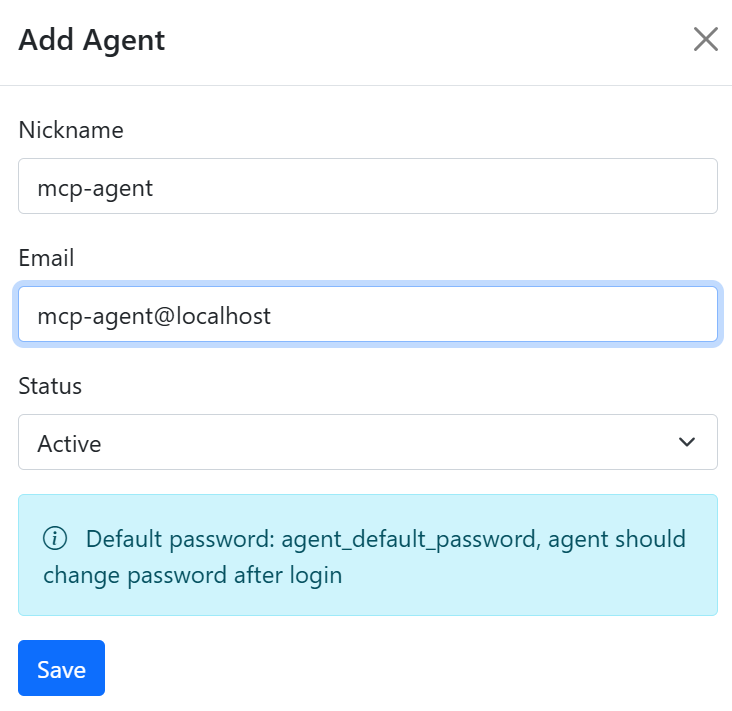
The default password here is for manual frontend login at https://<APP_DOMAIN>/app/login. You can change this password by finding the Agent user in the user list, or by logging in to the frontend and changing it there. Agent usernames start with a by default.
After adding the user, you can see it in the Agent user list, as shown in Figure 11.2.
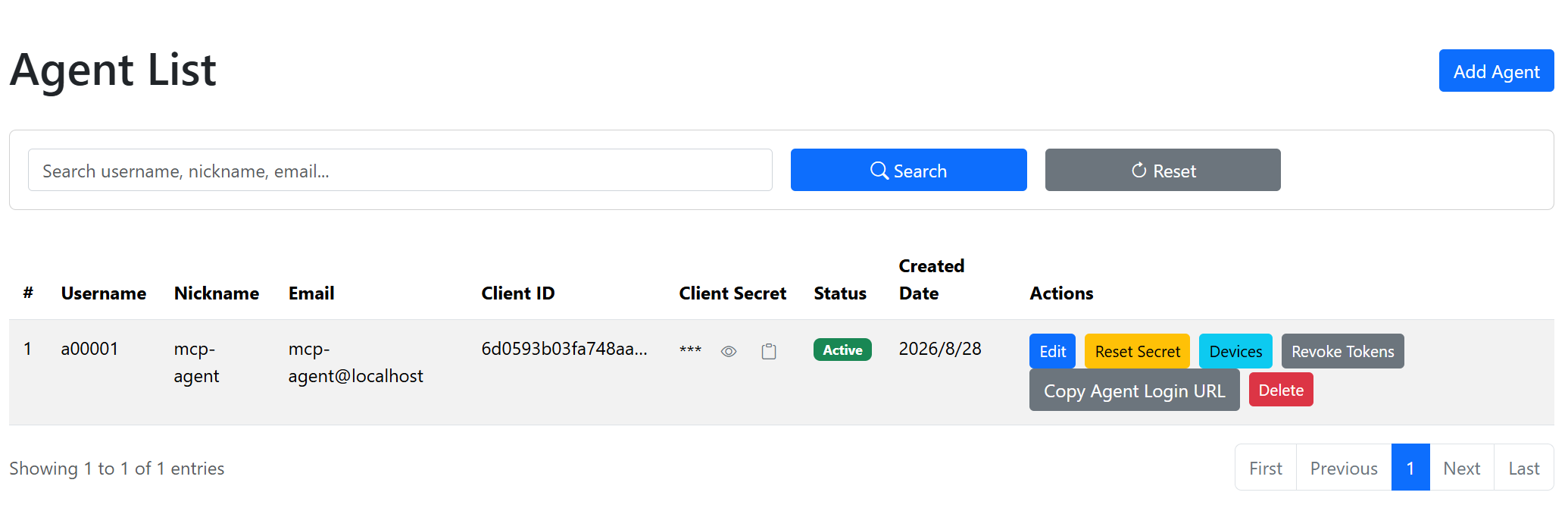
Then copy the Agent user’s clientId and clientSecret for MCP client configuration. You can also click the “ ” button to copy the login URL. The URL looks like this:
https://192.168.1.105/agent/login?clientId=6d0593b03fa748aa8dee7452ef6221c8&clientSecret=d985786d946e4826aadd07d579c59b06bf41a32aff4a415f8981070915d940a9It already contains clientId and clientSecret, so it can be used directly in MCP client configuration.
11.5 Authorize the Agent User
Go to:
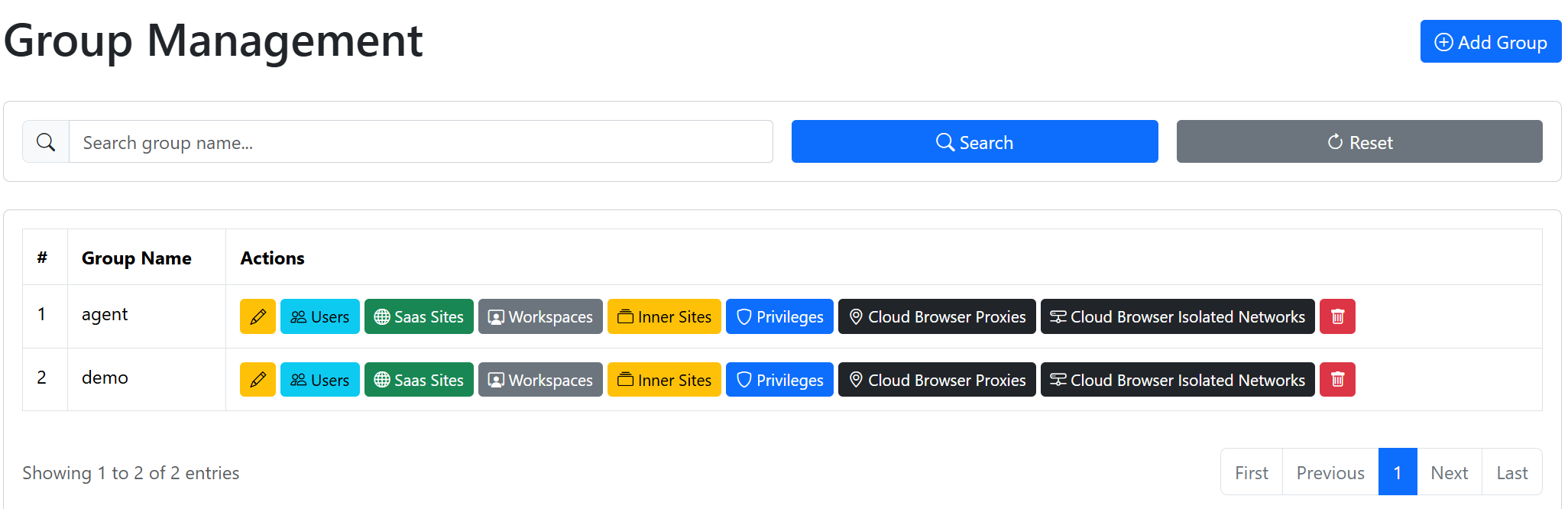
User Management > Group ListOn the group list page, create a new group, such as agent, as shown in Figure 11.3. Click Users, add the Agent user such as mcp-agent to the group, and save. Then authorize the required SaaS, workspace, inner site, proxy, and other permissions for the group.
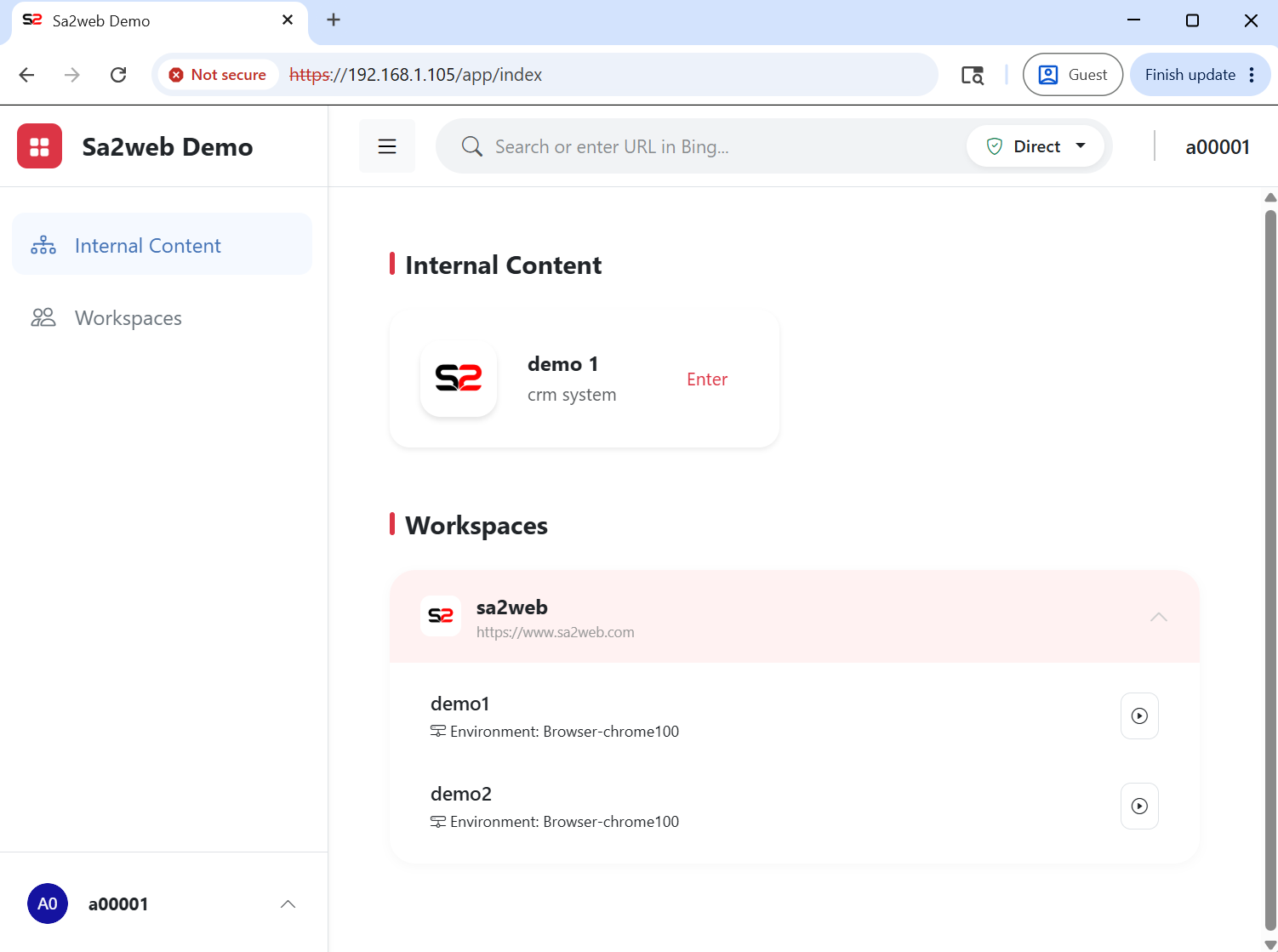
Open the Agent login URL in a new browser, for example https://192.168.1.105/agent/login?clientId=6d0593b03fa748aa8dee7452ef6221c8&clientSecret=d985786d946e4826aadd07d579c59b06bf41a32aff4a415f8981070915d940a9. It redirects to the Sa2web home page, as shown in Figure 11.4. Confirm that the Agent’s authorized content is correct.
11.6 MCP Client Configuration
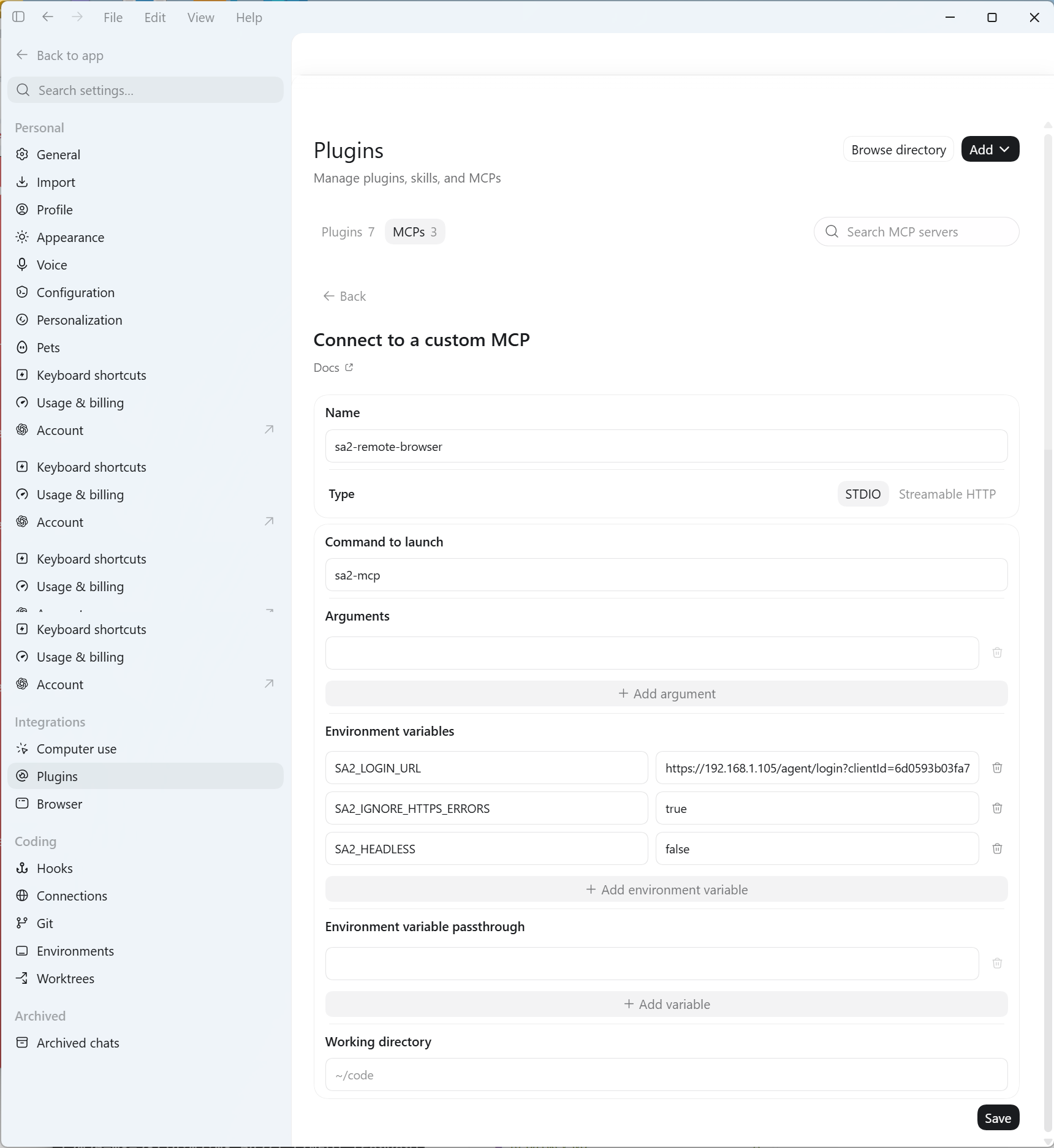
Write configuration in the format required by the AI agent client you use. Example:
{
  "mcpServers": {
    "sa2-remote-browser": {
      "command": "sa2-mcp",
      "env": {
        "SA2_LOGIN_URL": "https://<APP_DOMAIN>/agent/login?clientId=...&clientSecret=...",
        "SA2_LOGIN_REDIRECT_PATH": "/app/login",
        "SA2_HEADLESS": "false",
        "SA2_IGNORE_HTTPS_ERRORS": "true"
      }
    }
  }
}
The following example uses Codex desktop to show how to add Sa2web MCP. Click the settings menu in Codex, open the settings screen, as shown in Figure 11.5, find Plugins, open the Plugins page, and click Add MCP Server.
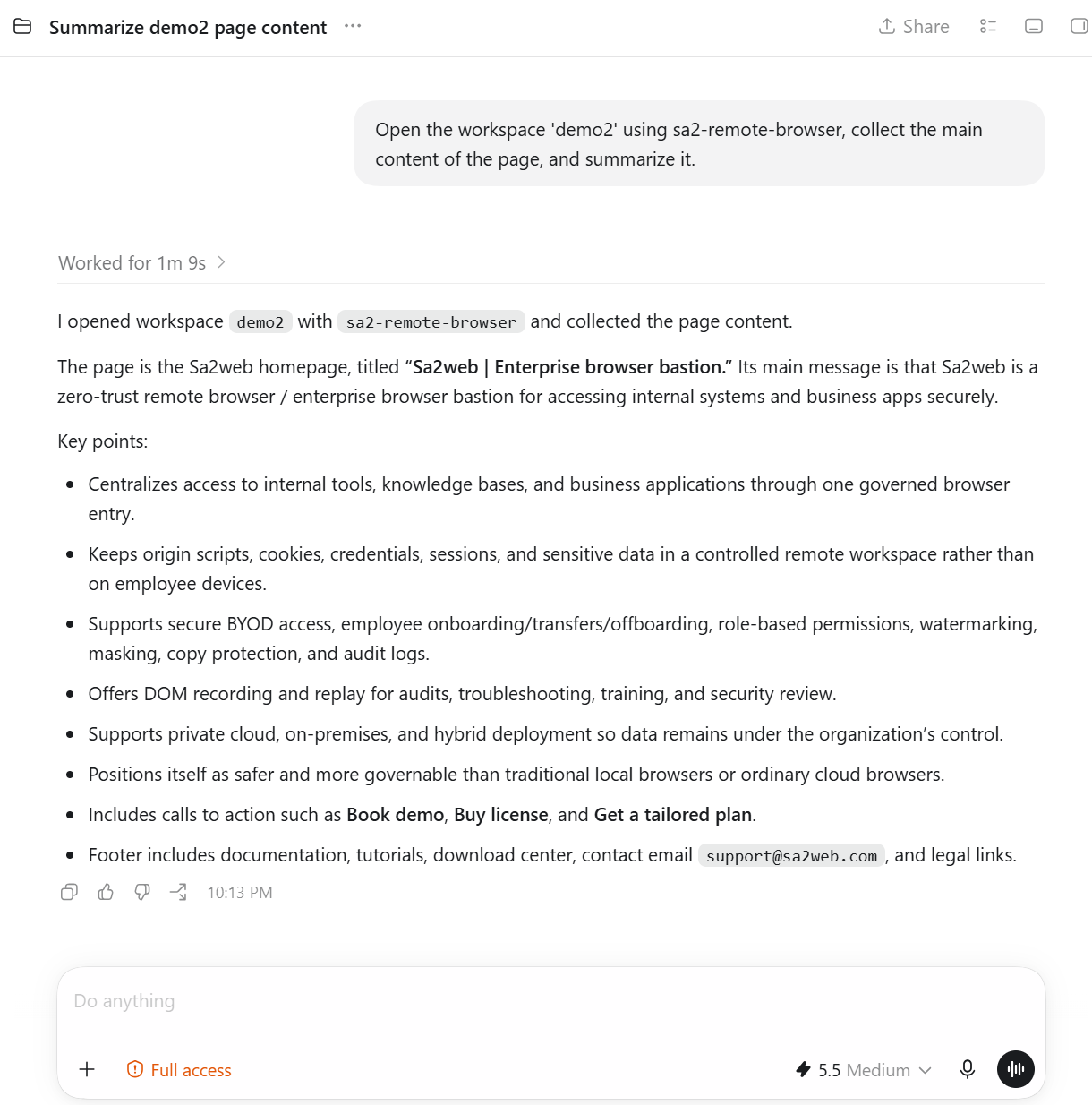
Next, try this MCP. Enter the following prompt to use Sa2web MCP to browse a workspace site and collect content:
Open the workspace 'demo2' using sa2-remote-browser, collect the main content of the page, and summarize it.After sending the message, Codex uses sa2-remote-browser to access the Sa2web target site and collect content, as shown in Figure 11.6.
Do not commit real clientSecret values to public Git repositories, screenshots, or public tickets.
11.7 AI Permissions
AI accounts are still controlled by the Sa2web permission system. Grant only what is needed:
- SaaS sites.
- Workspaces.
- Inner sites.
- Network/proxy access.
- Other necessary permissions.
The official documentation states that the target site is located in iframe#rbi-frame; the MCP Server controls that iframe through Playwright, and the agent does not directly access the target website.
To reduce the risk of AI exposing trade secrets or private data, enable target URL protection for sites in the backend in advance, and hide or block SaaS account information, company-secret URLs, and sensitive keywords.
11.8 Acceptance Checklist
References:
- https://www.sa2web.com/docs/en/appendix/mcp