15 Enable Passkey Verification for Target Sites
15.1 Goal
Explain the preparation, operation flow, local testing method, and validation points for target sites that use Passkey, WebAuthn, or security-key login in the Sa2web remote browser environment.
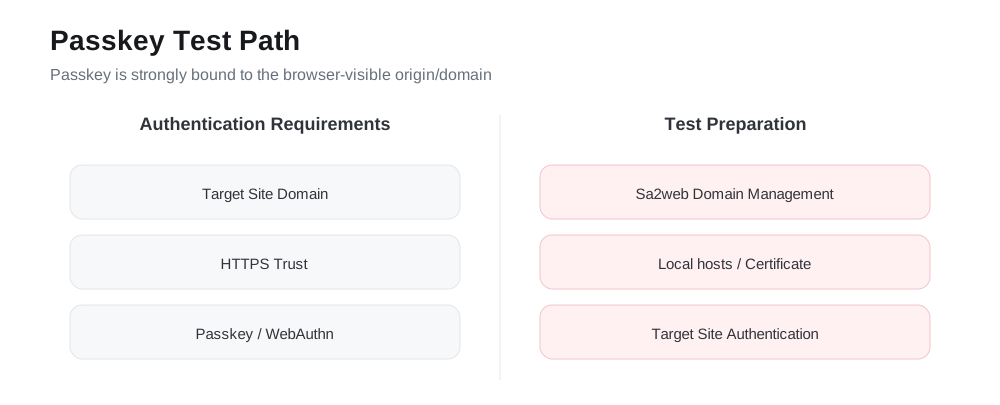
The key question for Passkey is not merely whether the login page can open. The browser-visible domain, trusted HTTPS state, and target-site authentication interaction must all satisfy WebAuthn requirements.
15.2 Prerequisites
Before using Passkey login, confirm at least the following:
| Condition | Description |
|---|---|
| The target site supports Passkey / WebAuthn / security keys | The login page offers the corresponding authentication method |
| The user has bound a Passkey on the target site | If not bound, add one in the account security settings of the target site first |
| The remote browser path supports authentication interaction | The user can see the browser prompt and complete the authentication action |
| The access domain is correct | Passkeys are strongly bound to the browser origin and cannot be arbitrarily replaced with an IP or temporary domain |
| HTTPS is trusted | If the browser considers the page insecure, WebAuthn may not work normally |
The official documentation states that Passkey is currently still in alpha. Login may fail on some sites. Verify site by site before production use.
15.3 Basic Login Flow
After the target site is configured, users follow this flow:
- The administrator confirms that the URL, domain, and login flow are correct in site configuration.
- The user enters the target site through the Sa2web frontend.
- On the target-site login page, the user selects Passkey login.
- The user completes authentication according to the browser prompt.
- After successful login, confirm that the remote browser enters the target business page.
During validation, do not only check whether the page opens. Also confirm that the target site truly recognizes the Passkey login method.
15.4 Why the Domain Matters
A Passkey is strongly bound to the domain visible to the browser, namely the origin. When testing target-site Passkey login, do not access the site only through a server IP or temporary forwarding address.
For example, suppose the target site is actually bound to:
login.example.comUsing any of the following addresses during testing may trigger failure:
https://192.168.1.105/
https://temp-tunnel.example.net/
https://another-domain.example.com/
The correct approach is to make the local browser initiate HTTPS access with the target-site domain and ensure that Sa2web recognizes that domain as a business domain that can be proxied.
15.5 Local Testing for Target-Site Passkey
Local testing is suitable for validating the path before authorizing production users. The core goal is to make the origin in the browser address bar equal to the target-site domain and make the certificate trusted by the local browser.
15.5.1 Add the Target-Site Domain
Open the admin console:
System Settings > Domain ManagementClick Add Domain and add the target-site domain, for example:
login.example.comDomain management maintains the business domains that the system is allowed to process. If a domain has not been added, Sa2web may not process it as expected even if hosts points it to the server.
15.5.2 Install and Trust the Caddy Root Certificate
When an intranet or test environment uses Caddy internal certificates, the local browser must trust the corresponding root certificate. Otherwise, Passkey / WebAuthn may fail because HTTPS is not trusted.
Usually, install the Caddy root certificate on the test computer and trust it in the system or browser. See the official intranet certificate installation documentation for installation details.
If you use a public production domain with a public CA certificate trusted by browsers, you usually do not need to manually install a root certificate.
15.5.3 Modify Local hosts
In the local computer’s hosts file, point the target-site domain to the Sa2web deployment server IP.
<SERVER_IP> login.example.comExample:
192.168.1.105 login.example.comhosts file locations:
| System | hosts path |
|---|---|
| Windows | C:\Windows\System32\drivers\etc\hosts |
| macOS / Linux | /etc/hosts |
After modifying the file, reopen the browser. Clear the DNS cache if necessary so the browser does not continue using the old resolution result.
15.5.4 Access the Test Address with the Target Domain
Use the target-site domain to access the test address generated by Sa2web or required by the business scenario:
https://<target-site-domain>/?saas=<...>&_d=<target-site-address>Parameter descriptions:
| Parameter | Description |
|---|---|
<target-site-domain> |
A domain added in Domain Management and pointed to the deployment server IP in local hosts |
saas |
SaaS access parameter generated by the system or required by the business scenario |
_d |
Target-site address, usually the URL that needs to be opened |
After these preparations, the origin in the browser address bar is the target-site domain and the HTTPS certificate is trusted locally. Only then do you have the basic conditions for testing target-site Passkey login.
15.6 Result Validation
Use this checklist during testing:
- The target-site login page recognizes and displays the Passkey login method.
- The user can trigger the browser authentication prompt.
- The user can complete the authentication action.
- After successful login, the user enters the target business page.
- If authentication fails, target-site prompts and remote browser logs can be used for troubleshooting.
15.7 Common Failure Causes
| Symptom | Possible cause | Direction |
|---|---|---|
| Login page has no Passkey entry | The target account has not bound a Passkey, or the site has not enabled this method | Bind or enable it in the target-site account security settings first |
| Nothing happens after clicking Passkey | Browser origin does not match, or the page is not trusted HTTPS | Check the domain, certificate, and access address |
| Current environment is reported as unsupported | The target site has stricter WebAuthn environment requirements | Test again with a browser configuration supported by the target site |
| Returns to the login page after authentication | Target-site session was not established, or the authentication callback was intercepted | Check target-site prompts and remote browser logs |
| Local testing works, but production users fail | User permissions, groups, site configuration, or network are different | Compare authorization and configuration between the test user and production user |
15.8 Go-Live Recommendations
Passkey involves the target site’s own policy, browser environment, domain, and certificate. Validate it gradually by site:
- Complete local testing with an administrator or test user first.
- Then validate through the Sa2web frontend with a normal test user.
- Confirm that site configuration, domain management, and certificates are stable.
- Authorize a small group of business users.
- Collect failed sites and failed browser environments, and record compatibility conclusions separately.
15.9 Acceptance Checklist
Official documentation:
- https://www.sa2web.com/docs/en/appendix/passkey