10 Enable Recording and Replay Audit
10.1 Goal
Put remote browsing access for specified groups into recording mode and replay historical operations in the backend.
10.2 Prerequisites
- The deployed version supports the full feature set, and the installation package must be the Enterprise Edition.
- The administrator has the View Recording and Replay permission.
- Access records have already been generated.
10.3 Enable Recording
Go to:
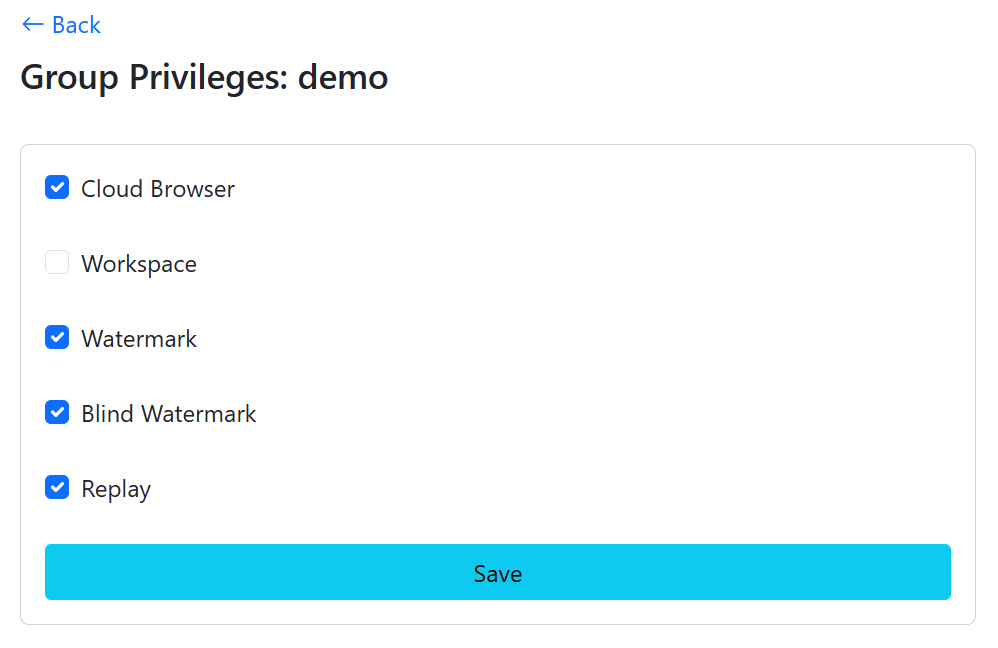
Group Management > Group ListClick Privileges to open the group privilege settings page, as shown in Figure 10.1. Select Recording and Replay, then save.
After that, users in the group enter recording mode while browsing, as shown in Figure 10.2.
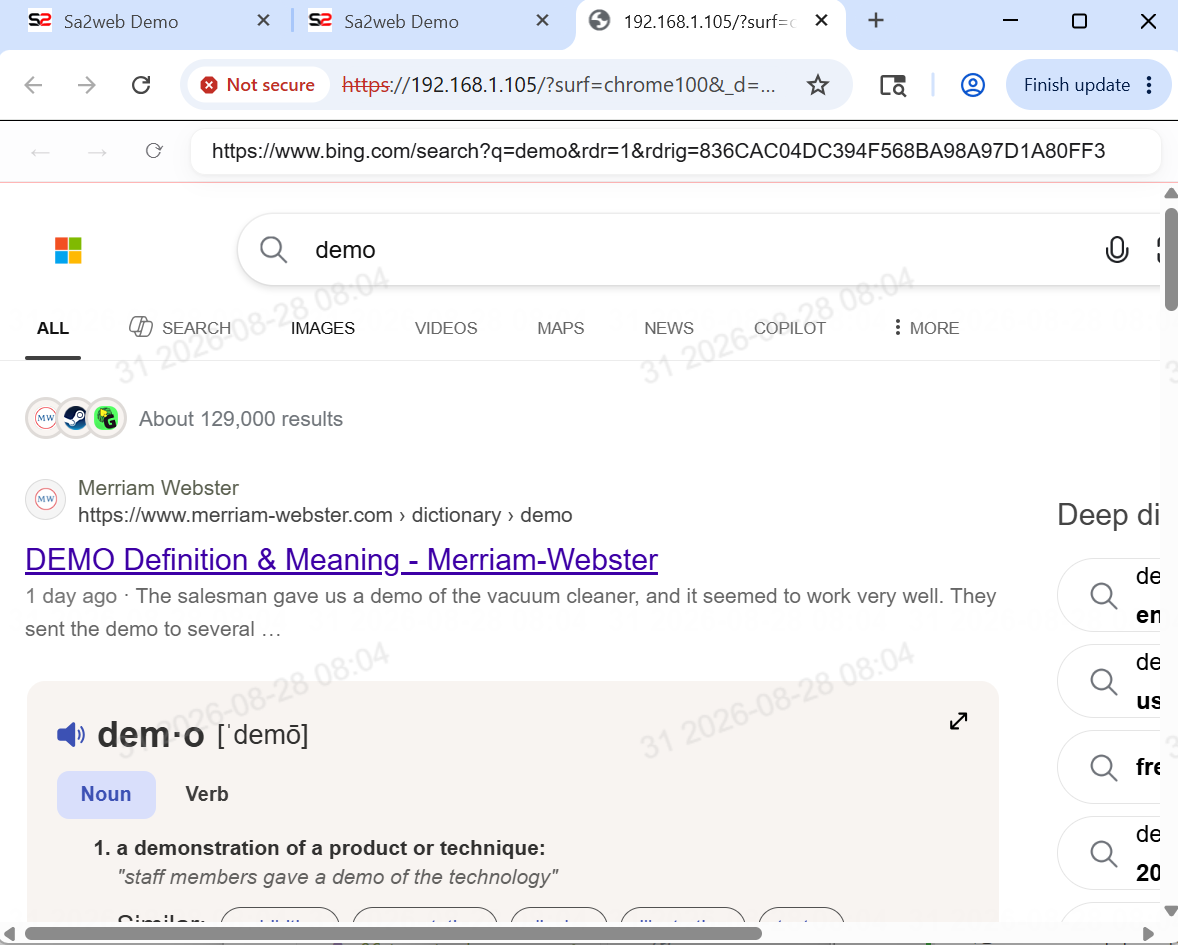
During recording, a red line appears at the top of the page to remind the user that the current access is being recorded.
10.4 View Replay
Go to:
User Management > User List
User Management > Admin List
Find the target user and click the “ ” button to enter the replay page, as shown in Figure 10.3.
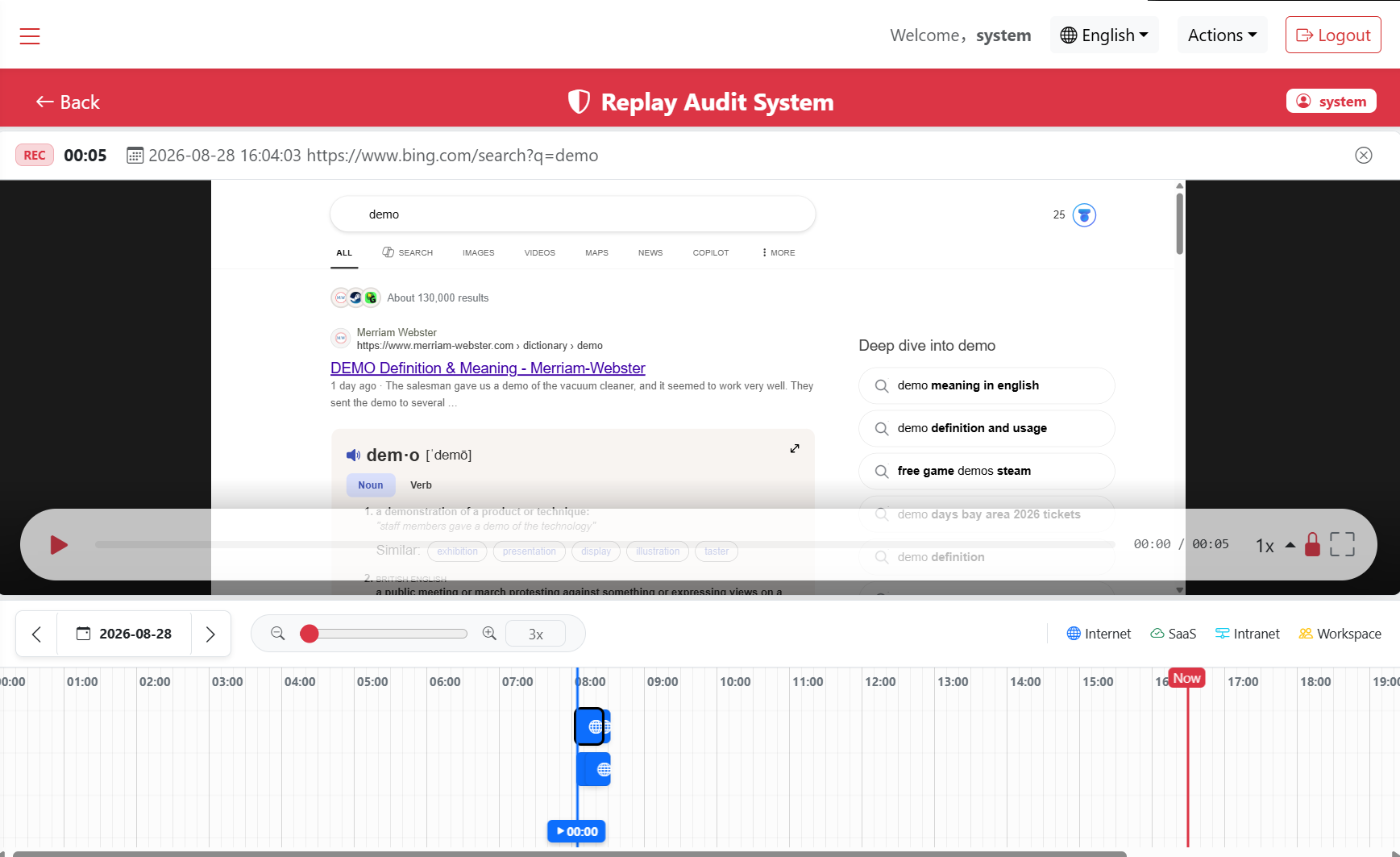
- Select an access record.
- Use play, pause, and progress controls to review it.
- If you need to copy content from the replay page, click the “
 ” button. You can then copy content from the replay page.
10.5 Suitable Scenarios
- Employee operation audit.
- Training review.
- Troubleshooting.
- Business handover.
- Review of high-risk backends.